> For the complete documentation index, see [llms.txt](https://doc.dastra.eu/llms.txt). Markdown versions of documentation pages are available by appending `.md` to page URLs; this page is available as [Markdown](https://doc.dastra.eu/en/features/requests/redaction.md).

# Document redaction

Redact documents attached to a data subject request directly inside Dastra, with or without AI assistance.

When you process a data subject request, you often have to send documents to the requester: a copy of an ID, a contract, an account history, a customer file. These documents almost always contain confidential information that must not be disclosed: data about third parties, internal contract terms, named references.

Dastra includes a redaction tool inside the request. The interface calls it **File redaction**.

***

## Open the redaction tool

The tool opens from the attachments of the request. It accepts PDF, PNG and JPEG files and depends on your plan: the button does not appear if redaction is not included.

1. In the **Requests** menu, open **Record of requests**, then open the request to process.
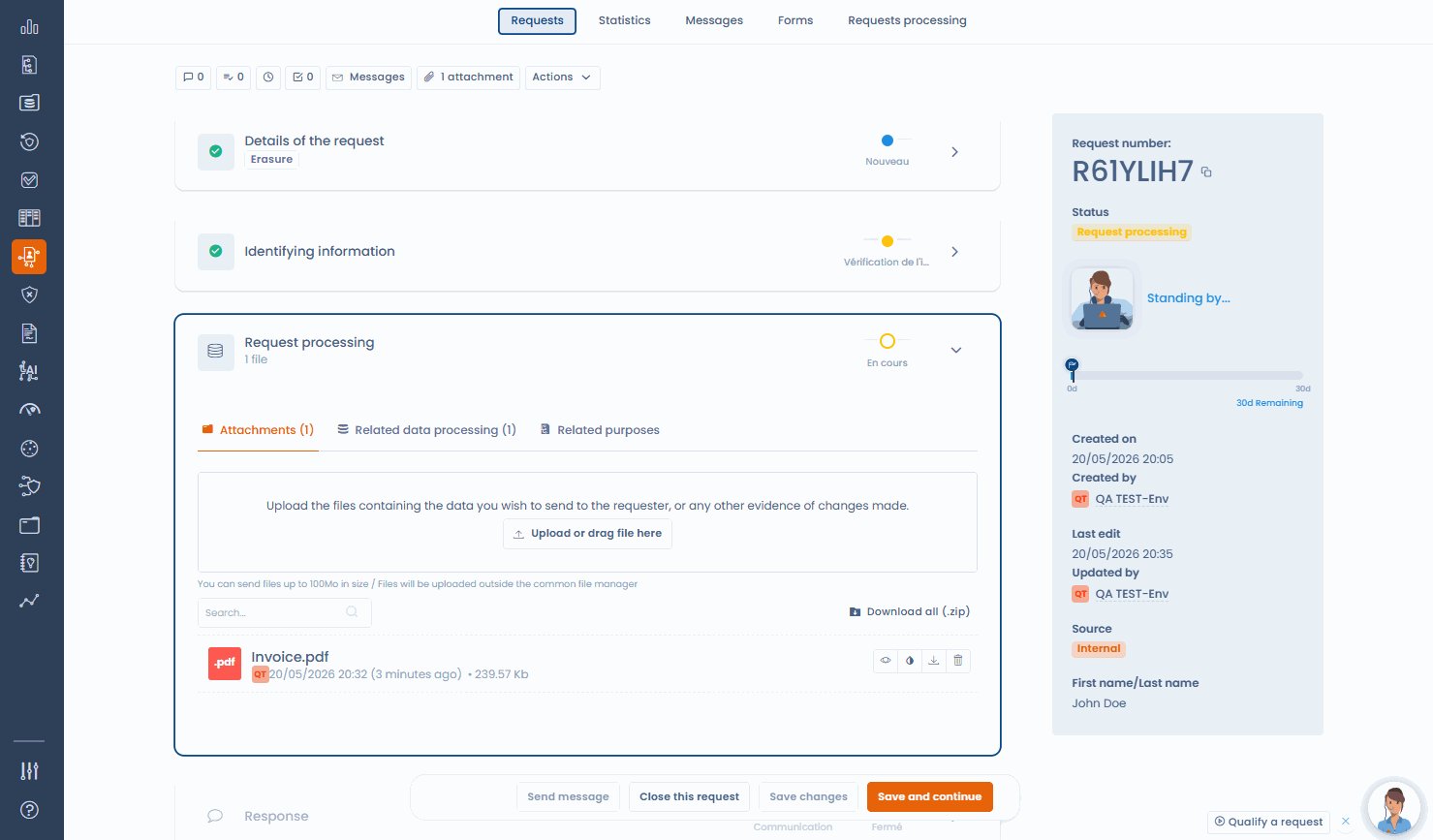
2. In the **Request processing** section, open the **Attachments** tab. Upload the document if needed.
3. On the file row, click the **Data redaction** icon. You can also open the file preview and click **Data redaction**.

The **File redaction** editor opens on the document.

<figure><img src="https://2697025545-files.gitbook.io/~/files/v0/b/gitbook-x-prod.appspot.com/o/spaces%2F-LvBxs22wUMicv9uWp6C-1972196547%2Fuploads%2Fgit-blob-11080b14b4e218abde0912ee8393e6b3a1a4269a%2Fdsr-request-processing-attachments.png?alt=media" alt="The Attachments tab of a request, with the preview, redaction, download and delete icons on the file row"><figcaption><p>The request attachments, with the redaction icon on each compatible file</p></figcaption></figure>

***

## Redact manually

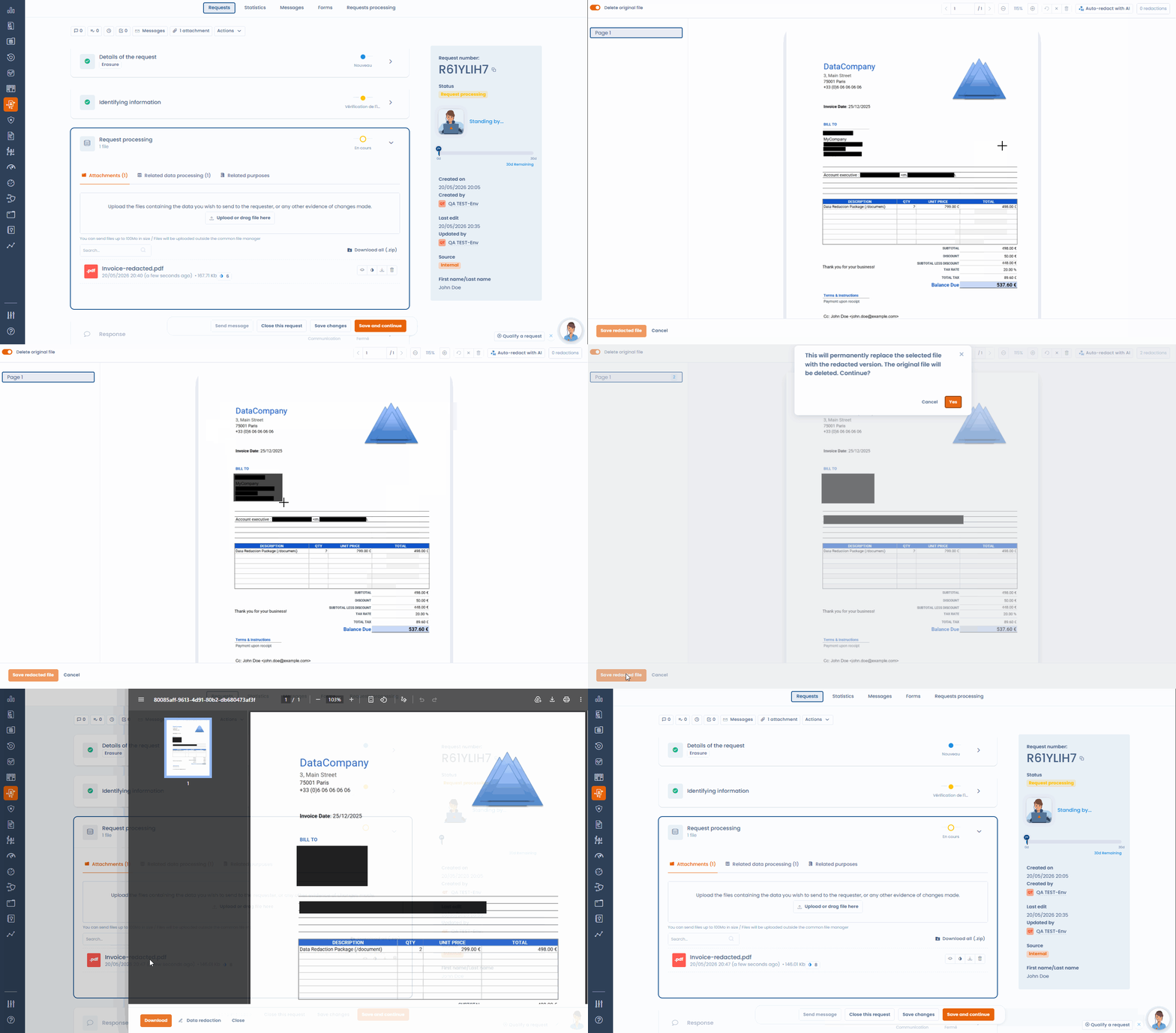
Draw the areas to hide on each page with the mouse. The editor shows the number of redactions and offers these actions:

* **Remove redaction** deletes one area.
* **Undo last redaction** goes back by one area.
* **Clear page redactions** and **Clear all redactions** start again from a clean page.
* The zoom and page buttons make long documents easier to read.

<figure><img src="https://2697025545-files.gitbook.io/~/files/v0/b/gitbook-x-prod.appspot.com/o/spaces%2F-LvBxs22wUMicv9uWp6C-1972196547%2Fuploads%2Fgit-blob-18bbc8ddf88ee08b8e2b9721c96b38fc4732a707%2Fcaviardage-manuel.gif?alt=media" alt="Manually selecting the areas to hide on a document"><figcaption><p>Draw the areas to redact directly on the document</p></figcaption></figure>

<figure><img src="https://2697025545-files.gitbook.io/~/files/v0/b/gitbook-x-prod.appspot.com/o/spaces%2F-LvBxs22wUMicv9uWp6C-1972196547%2Fuploads%2Fgit-blob-7d8b982d0376f4b254049fec05a1a2ae481b3a67%2Frequests-redaction-1.png?alt=media" alt="The File redaction editor with the document, redacted areas in black and the toolbar"><figcaption><p>The File redaction editor</p></figcaption></figure>

***

## Redact with AI

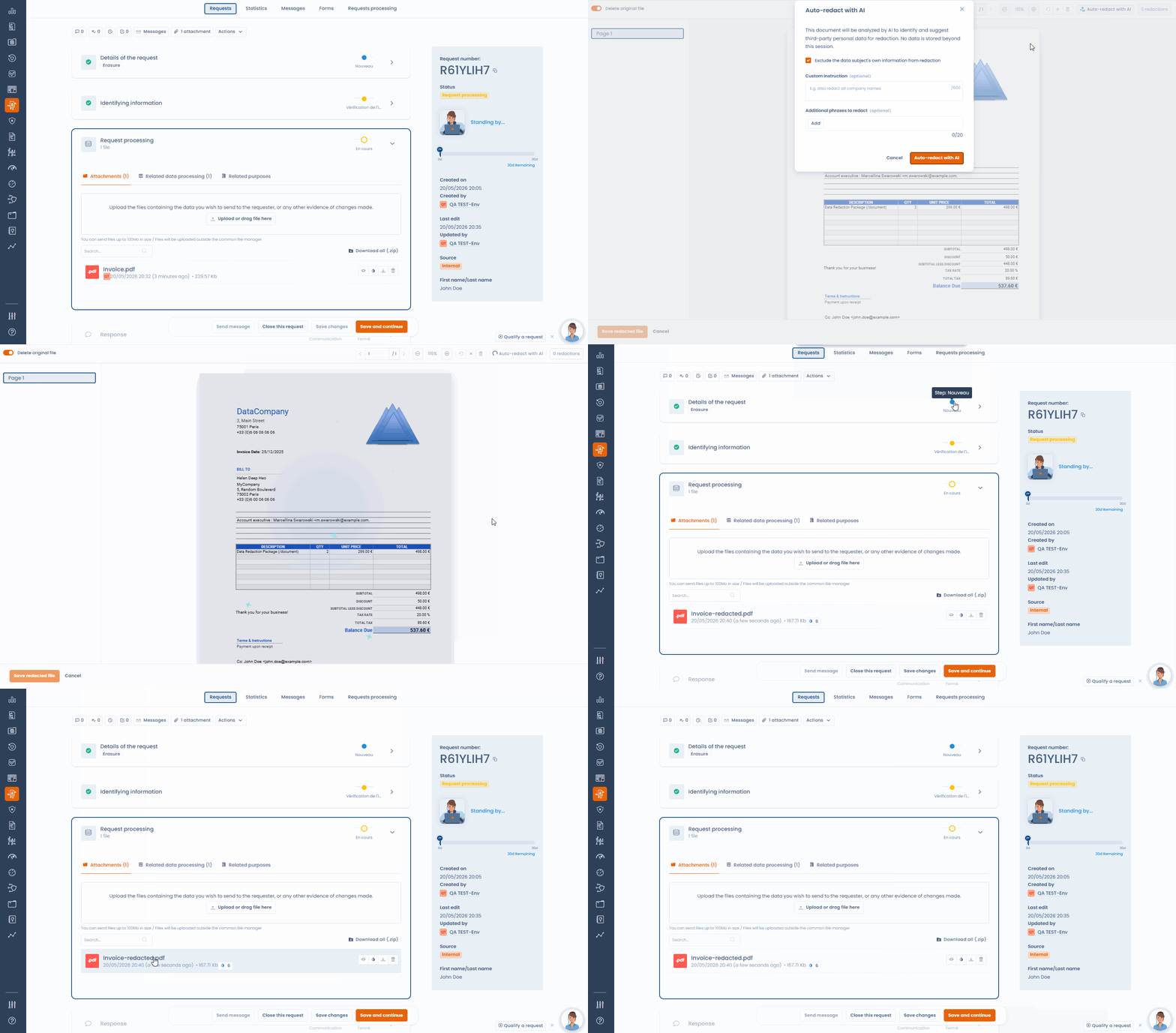
In the editor, click **Auto-redact with AI** to open the **Auto-redact with AI** dialog. The AI analyzes the document, finds third-party personal data (names, addresses, contact details, identification numbers) and places redaction areas. No data is kept beyond the session. The text of the document, extracted by optical character recognition (OCR), is sent to the AI model in blocks: it contains personal data by nature. Dastra does not log this text or the detected values, and the proposed areas are not saved before you validate them. See [What data is transmitted to the model](https://doc.dastra.eu/en/dastra-ai/ai-assistant/how-it-works.md#what-data-is-transmitted-to-the-model) for details.

{% hint style="warning" %}
**Bleu offer.** Optical character recognition and text analysis are performed by Mistral AI, not by Azure.
{% endhint %}

The dialog offers three options:

* **Exclude the data subject's own information from redaction**: selected by default, so the requester's own data stays readable.
* **Custom instruction**: an additional instruction, for example also redact all company names.
* **Additional phrases to redact**: up to 20 phrases to hide wherever they appear. Type a phrase, then press Enter.

Then click **Auto-redact with AI**. The suggested areas are added to the editor: remove the ones detected by mistake and add the ones the AI missed. The **Auto-redact with AI** button only appears if AI redaction is included in your plan.

<figure><img src="https://2697025545-files.gitbook.io/~/files/v0/b/gitbook-x-prod.appspot.com/o/spaces%2F-LvBxs22wUMicv9uWp6C-1972196547%2Fuploads%2Fgit-blob-aa2a5e197e71bf200ec20dfeeaf8362d4c9151bd%2Frequests-redaction-2.png?alt=media" alt="The Auto-redact with AI dialog with its three options"><figcaption><p>The options of AI auto-redaction</p></figcaption></figure>

<figure><img src="https://2697025545-files.gitbook.io/~/files/v0/b/gitbook-x-prod.appspot.com/o/spaces%2F-LvBxs22wUMicv9uWp6C-1972196547%2Fuploads%2Fgit-blob-8e406ba811e275daedefd394f02494ee92b077a0%2Fcaviardage-analyse-ia.gif?alt=media" alt="AI analysis of a document and automatic detection of the areas containing third-party identifiers"><figcaption><p>The AI analyzes the document and places the redaction areas for you to review</p></figcaption></figure>

{% hint style="warning" %}
The AI result is a starting proposal, not a final decision. A qualified person must review and validate every area before the document is sent.
{% endhint %}

***

## Save the redacted file

When the review is done, click **Save redacted file**. The button stays inactive until at least one area is drawn. The **Delete original file** switch, on by default, decides what happens to the original:

* On: the redacted file permanently replaces the original, which is deleted.
* Off: the redacted file is added as a new attachment, named with the suffix `-redacted`, and the original is kept.

Dastra asks you to confirm before saving. Pages are flattened into images: the hidden text no longer exists in the resulting file and cannot be extracted. A redacted file shows the **File data redacted** indicator, with the number of redacted areas.

{% hint style="info" %}
A plain opaque rectangle over an unflattened PDF can be bypassed and is not a compliant redaction. Flattening to an image is the method recommended by data protection authorities.
{% endhint %}

***

## Best practices

* Review the redacted document before sending it to check that no confidential information is visible.
* Turn off **Delete original file** to keep the original in the request, for example for your compliance record, unless your internal policy requires deleting it.
* For long or complex documents (multi-page contracts, account statements), combine AI detection with a page-by-page manual review.


---

# Agent Instructions
This documentation is published with GitBook. GitBook is the documentation platform designed so that both humans and AI agents can read, navigate, and reason over technical content effectively. Learn more at gitbook.com.

## Querying This Documentation
If you need additional information that is not directly available in this page, you can query the documentation by asking a question.

Perform an HTTP GET request on the following URL with the `ask` and `goal` query parameters:

```
GET https://doc.dastra.eu/en/features/requests/redaction.md?ask=<question>&goal=<user_goal>
```

`ask` is the immediate question: it should be specific, self-contained, and written in natural language.
`goal` is what the user is ultimately trying to achieve, the reason they need the answer. Sharing it helps GitBook give you a better, more relevant answer. A goal is most helpful when it describes the outcome the user wants rather than restating the question. For example, with `ask=how do I create an API token`, a goal like `automate deployments from our CI pipeline` lets GitBook tailor the answer to that use case.

The response will contain a direct answer to the question and relevant excerpts and sources from the documentation.

Use this mechanism when the answer is not explicitly present in the current page, you need clarification or additional context, or you want to retrieve related documentation sections.