> For the complete documentation index, see [llms.txt](https://doc.dastra.eu/llms.txt). Markdown versions of documentation pages are available by appending `.md` to page URLs; this page is available as [Markdown](https://doc.dastra.eu/en/features/integrations/microsoft-teams.md).

# Microsoft Teams

Send Dastra workflow notifications to your Microsoft Teams channels

### What does the integration do?

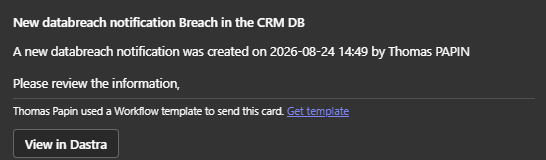
The Microsoft Teams integration posts **Dastra workflow notifications as cards in a Microsoft Teams channel**: when a workflow rule fires (a data breach is created, a request changes step…), Dastra sends an Adaptive Card with a title, a message and an optional link back to the record in Dastra.

<figure><img src="https://2697025545-files.gitbook.io/~/files/v0/b/gitbook-x-prod.appspot.com/o/spaces%2F-LvBxs22wUMicv9uWp6C-1972196547%2Fuploads%2Fgit-blob-78bd93b1a1e45d956c6513078c0bf7011fe4e979%2Fmsteams-card.png?alt=media" alt=""><figcaption><p>A Dastra workflow notification in Teams</p></figcaption></figure>

### Prerequisites

You need a Microsoft Teams channel with an **incoming webhook created through the Workflows app** (Power Automate):

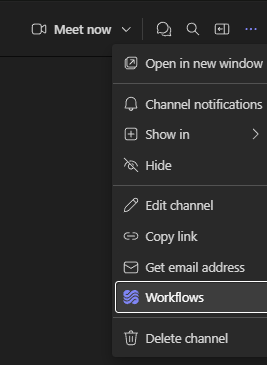
1. In Teams, open the channel and click **⋯ > Workflows**.

<figure><img src="https://2697025545-files.gitbook.io/~/files/v0/b/gitbook-x-prod.appspot.com/o/spaces%2F-LvBxs22wUMicv9uWp6C-1972196547%2Fuploads%2Fgit-blob-ef26e6d96448e78282b4a935b8c89362e2d70dce%2Fteams-workflows-menu.png?alt=media" alt=""><figcaption><p>The Workflows entry in the channel menu</p></figcaption></figure>

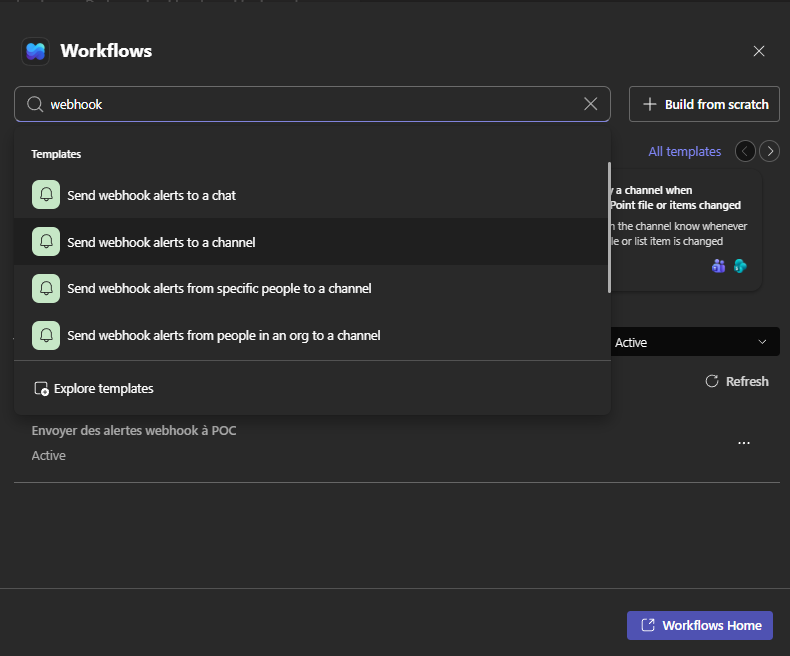
2. Search for "webhook" and choose the template **Send webhook alerts to a channel**.

<figure><img src="https://2697025545-files.gitbook.io/~/files/v0/b/gitbook-x-prod.appspot.com/o/spaces%2F-LvBxs22wUMicv9uWp6C-1972196547%2Fuploads%2Fgit-blob-6578a9c7d22192a236775753414770589aa596a5%2Fteams-workflows-template.png?alt=media" alt=""><figcaption><p>Choosing the webhook template</p></figcaption></figure>

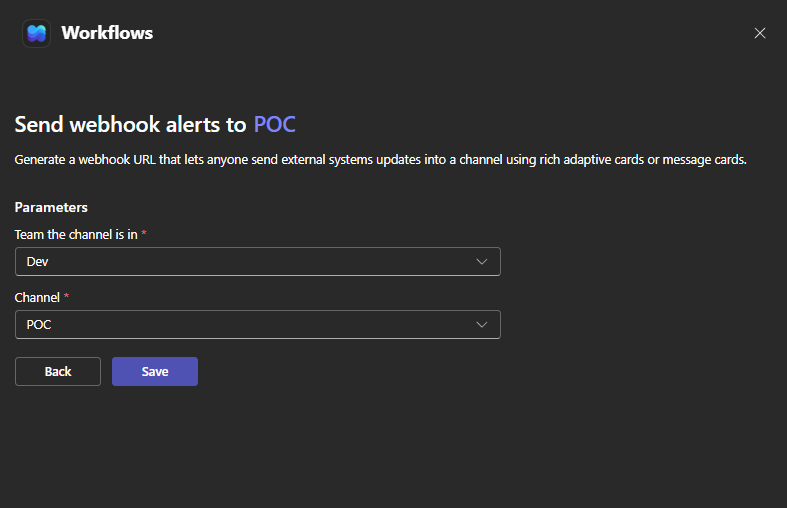
3. Select the team and the channel, then click **Save**.

<figure><img src="https://2697025545-files.gitbook.io/~/files/v0/b/gitbook-x-prod.appspot.com/o/spaces%2F-LvBxs22wUMicv9uWp6C-1972196547%2Fuploads%2Fgit-blob-88e7d4035c512d3820f58d56feb5559a928416e8%2Fteams-workflows-config.png?alt=media" alt=""><figcaption><p>Binding the workflow to the channel</p></figcaption></figure>

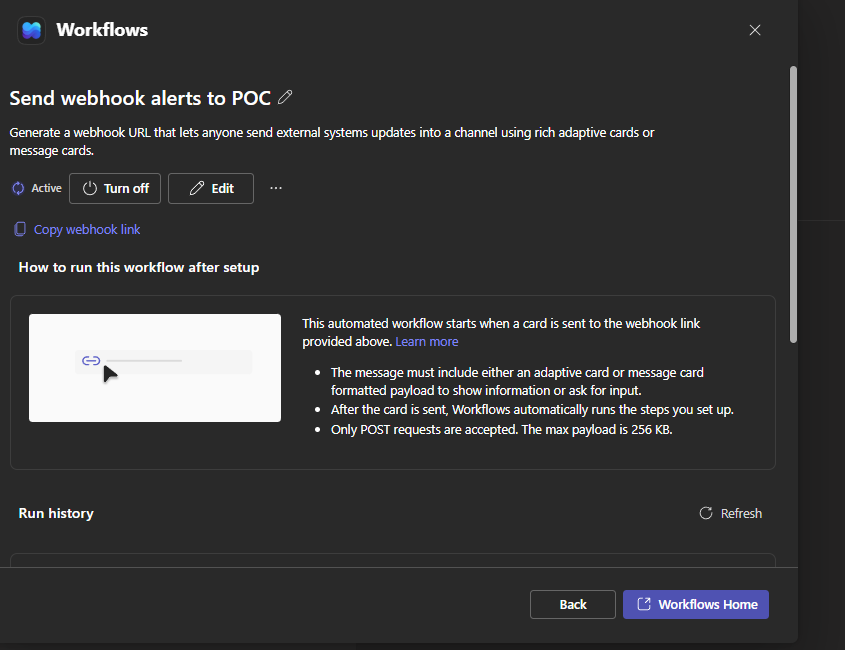
4. On the confirmation screen, click **Copy webhook link** — this is the URL you will paste into Dastra (it looks like `https://prod-XX.westeurope.logic.azure.com/workflows/...`).

<figure><img src="https://2697025545-files.gitbook.io/~/files/v0/b/gitbook-x-prod.appspot.com/o/spaces%2F-LvBxs22wUMicv9uWp6C-1972196547%2Fuploads%2Fgit-blob-4dec807810c845c6cd7e5418e435923c71baf161%2Fteams-workflows-link.png?alt=media" alt=""><figcaption><p>Copying the webhook URL</p></figcaption></figure>

{% hint style="info" %}
Microsoft retired the classic Office 365 incoming webhooks (channel connectors) in April 2026. The Workflows app is Microsoft's replacement, and it is what this integration relies on.
{% endhint %}

### Installation

1. In Dastra, open **Settings > Integrations** and select **Microsoft Teams**.
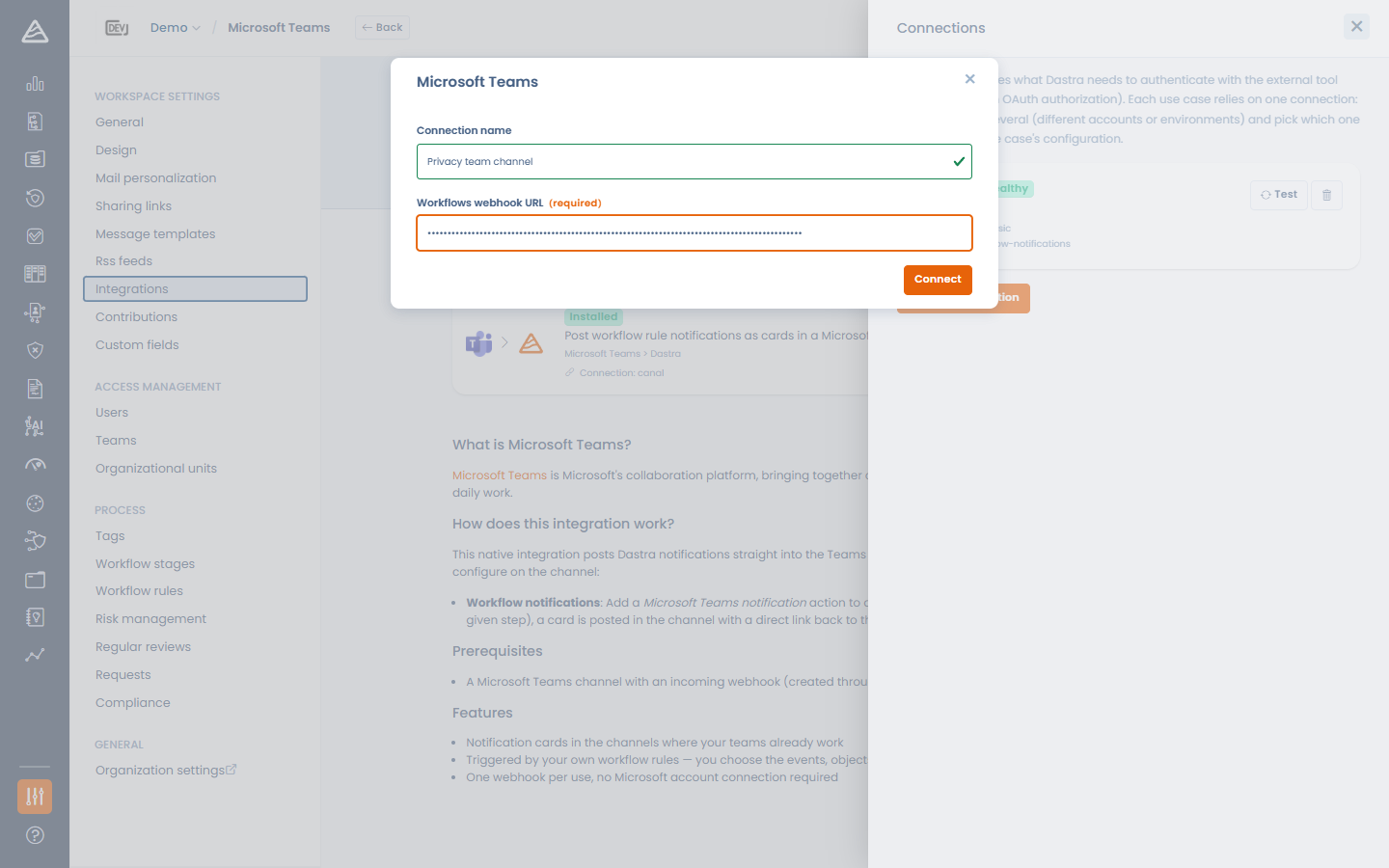
2. On the use case **Post workflow rule notifications as cards in a Microsoft Teams channel**, click **Add integration**.
3. Add a connection and paste the **Workflows webhook URL**.
4. Click **Connect**. Dastra immediately posts a test card ("*Dastra test notification*") into the channel to validate the URL.

<figure><img src="https://2697025545-files.gitbook.io/~/files/v0/b/gitbook-x-prod.appspot.com/o/spaces%2F-LvBxs22wUMicv9uWp6C-1972196547%2Fuploads%2Fgit-blob-b02fe4e707280d6b47f2e81cd327d8e23105bc83%2Fmsteams-install.png?alt=media" alt=""><figcaption><p>Installing the Microsoft Teams integration</p></figcaption></figure>

{% hint style="warning" %}
The webhook URL must be an HTTPS Power Automate endpoint (`*.logic.azure.com`, `*.azure-api.net` or `*.api.powerplatform.com`). Other hosts are rejected.
{% endhint %}

To notify **several channels**, create one connection per channel (each Workflows webhook targets a single channel).

### Sending notifications from a workflow rule

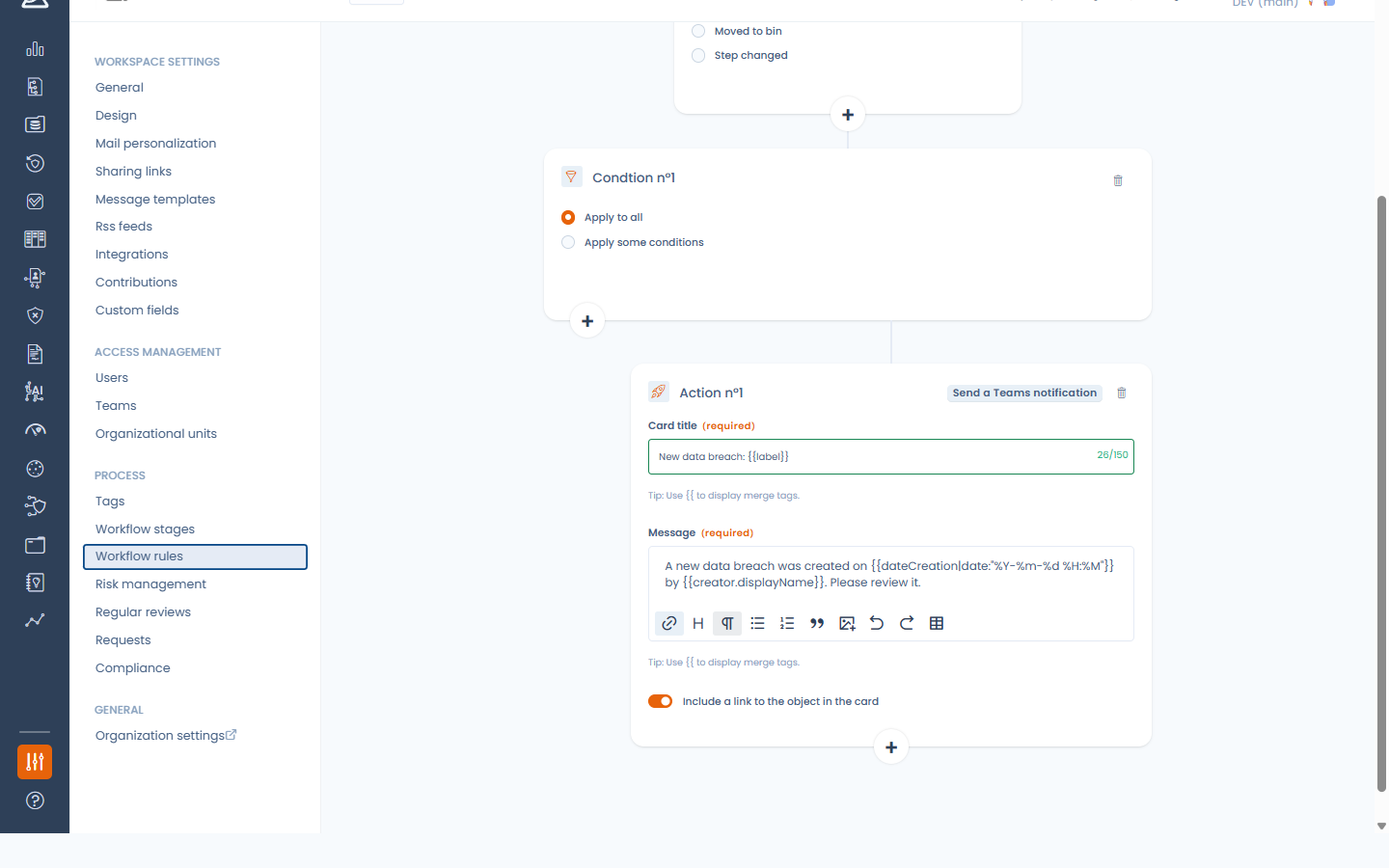
Once the integration is installed and enabled, the workflow rule designer offers a new action: **Send a Teams notification**.

Configure it like the e-mail notification action:

* **Card title** — supports merge variables (e.g. the record's name).
* **Message** — rich text with merge variables.
* **Include a link to the object in the card** — adds a **View in Dastra** button to the card.

There is no recipient to pick: the card is delivered to the channel behind the webhook.

<figure><img src="https://2697025545-files.gitbook.io/~/files/v0/b/gitbook-x-prod.appspot.com/o/spaces%2F-LvBxs22wUMicv9uWp6C-1972196547%2Fuploads%2Fgit-blob-03e770b6e5f578b0d5066029d875358f591610ca%2Fmsteams-action.png?alt=media" alt=""><figcaption><p>The "Send a Teams notification" workflow action</p></figcaption></figure>

{% hint style="info" %}
The Teams action only appears in the action picker when the integration is installed and enabled on the workspace.
{% endhint %}

### Uninstalling

When you uninstall the Microsoft Teams integration, the webhook URL is erased and every workflow rule that uses the Teams action is **automatically disabled** (not deleted), so your rules don't start failing. Re-enable them after reinstalling the integration.


---

# Agent Instructions
This documentation is published with GitBook. GitBook is the documentation platform designed so that both humans and AI agents can read, navigate, and reason over technical content effectively. Learn more at gitbook.com.

## Querying This Documentation
If you need additional information that is not directly available in this page, you can query the documentation dynamically by asking a question.

Perform an HTTP GET request on the current page URL with the `ask` query parameter, and the optional `goal` query parameter:

```
GET https://doc.dastra.eu/en/features/integrations/microsoft-teams.md?ask=<question>&goal=<endgoal>
```

`ask` is the immediate question: it should be specific, self-contained, and written in natural language.
`goal` is optional and describes the broader end goal you are ultimately trying to accomplish on behalf of the user. GitBook uses it to tailor the answer towards what is most useful for that goal.

The response will contain a direct answer to the question and relevant excerpts and sources from the documentation.

Use this mechanism when the answer is not explicitly present in the current page, you need clarification or additional context, or you want to retrieve related documentation sections.