Microsoft Teams
Send Dastra workflow notifications to your Microsoft Teams channels
What does the integration do?
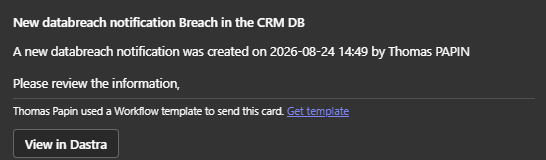
The Microsoft Teams integration posts Dastra workflow notifications as cards in a Microsoft Teams channel: when a workflow rule fires (a data breach is created, a request changes step…), Dastra sends an Adaptive Card with a title, a message and an optional link back to the record in Dastra.

Prerequisites
You need a Microsoft Teams channel with an incoming webhook created through the Workflows app (Power Automate):
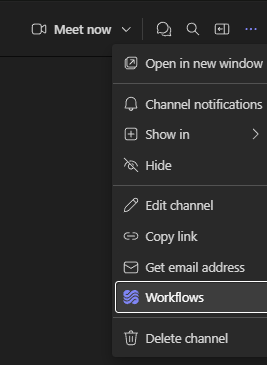
In Teams, open the channel and click ⋯ > Workflows.

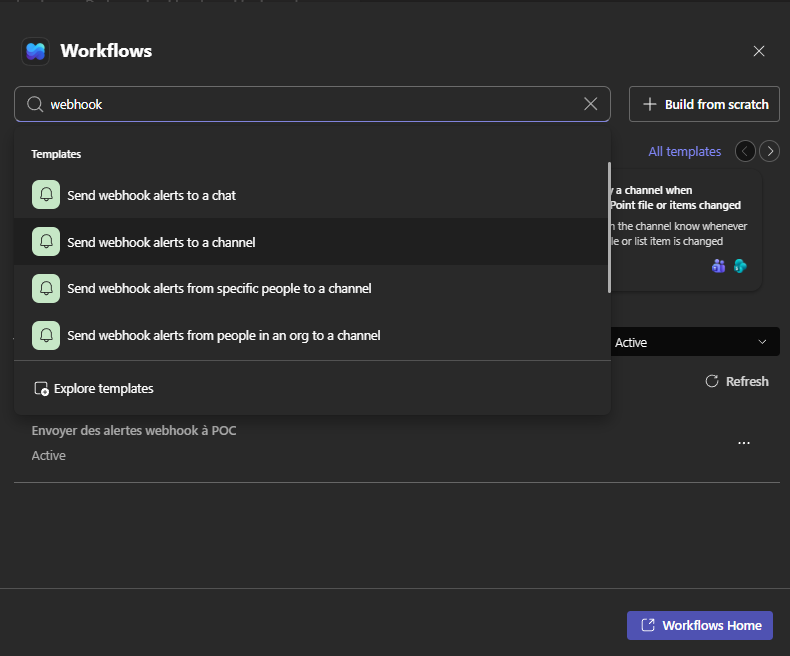
Search for "webhook" and choose the template Send webhook alerts to a channel.

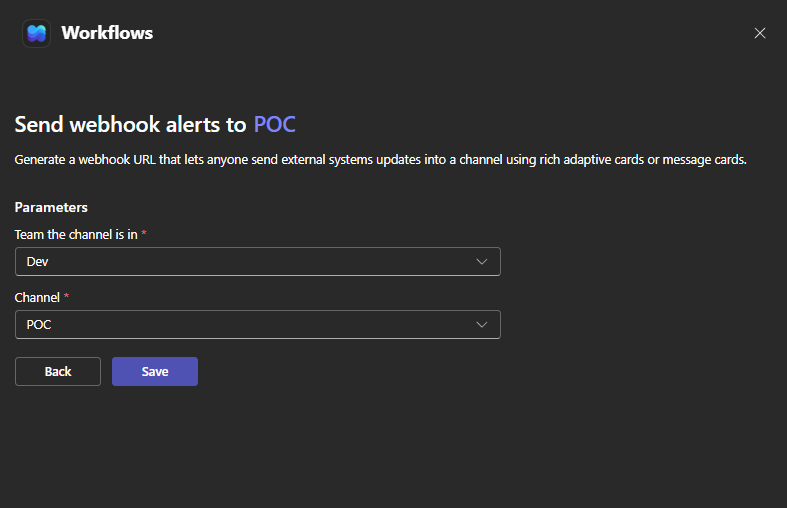
Select the team and the channel, then click Save.

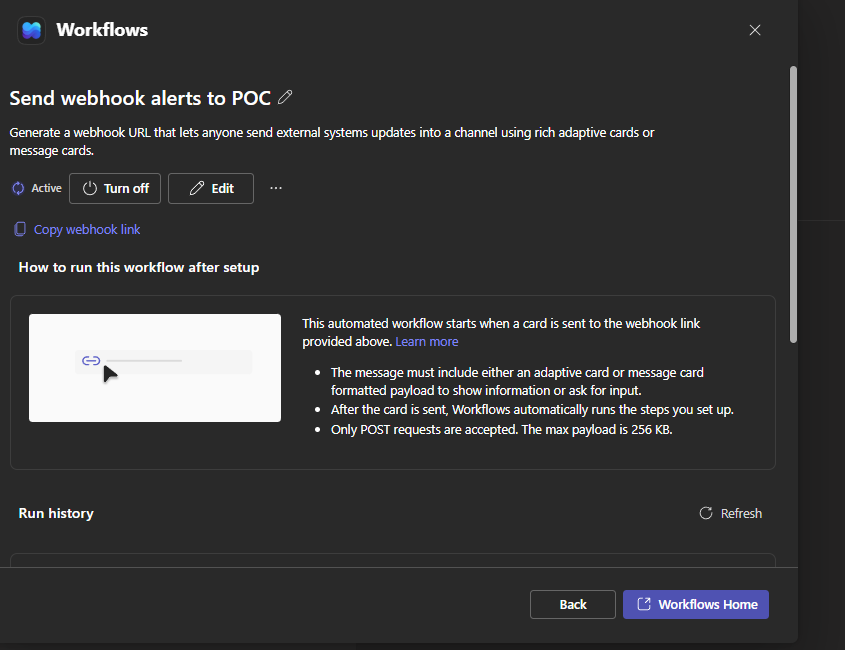
On the confirmation screen, click Copy webhook link — this is the URL you will paste into Dastra (it looks like
https://prod-XX.westeurope.logic.azure.com/workflows/...).

Installation
In Dastra, open Settings > Integrations and select Microsoft Teams.
On the use case Post workflow rule notifications as cards in a Microsoft Teams channel, click Add integration.
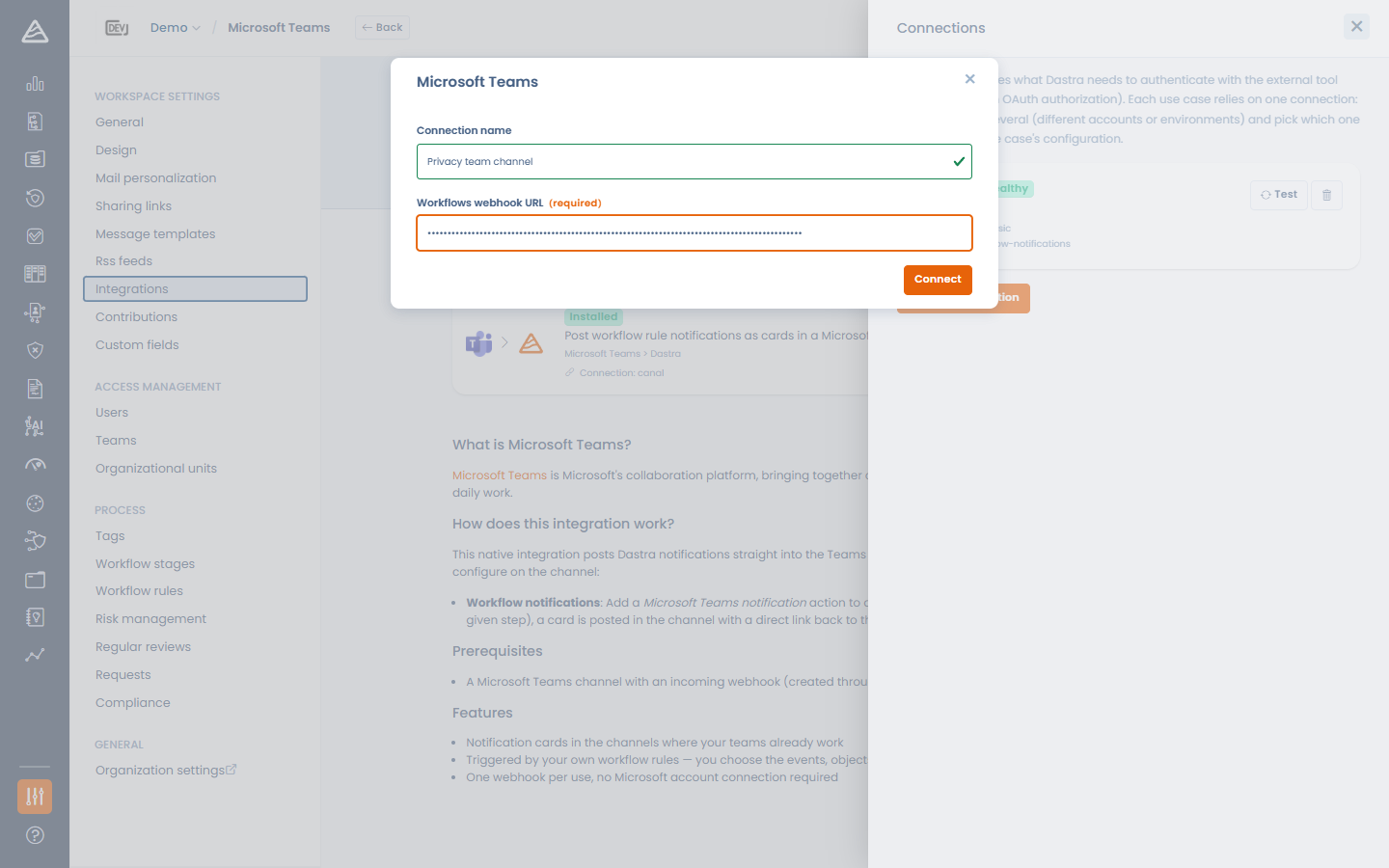
Add a connection and paste the Workflows webhook URL.
Click Connect. Dastra immediately posts a test card ("Dastra test notification") into the channel to validate the URL.

The webhook URL must be an HTTPS Power Automate endpoint (*.logic.azure.com, *.azure-api.net or *.api.powerplatform.com). Other hosts are rejected.
To notify several channels, create one connection per channel (each Workflows webhook targets a single channel).
Sending notifications from a workflow rule
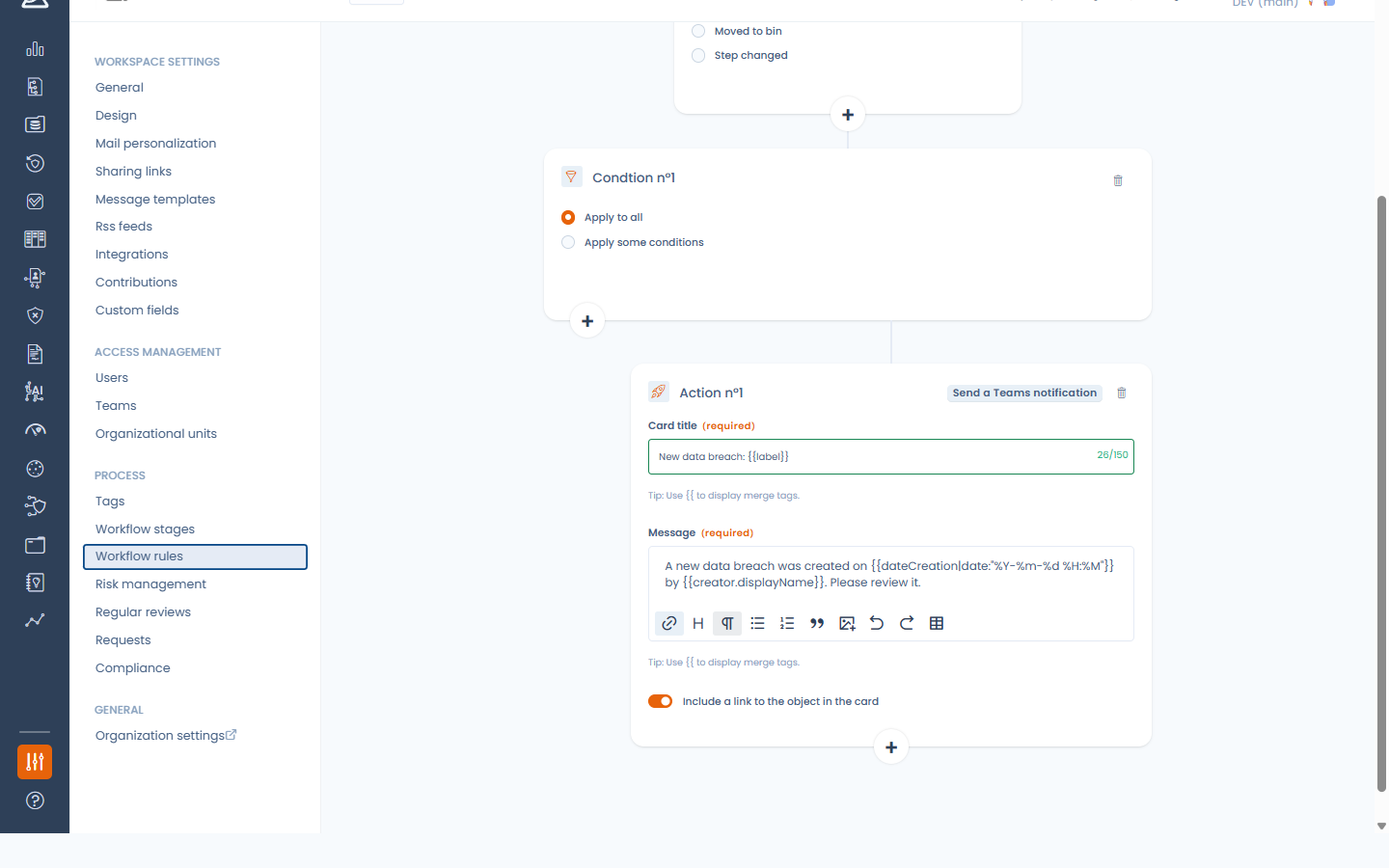
Once the integration is installed and enabled, the workflow rule designer offers a new action: Send a Teams notification.
Configure it like the e-mail notification action:
Card title — supports merge variables (e.g. the record's name).
Message — rich text with merge variables.
Include a link to the object in the card — adds a View in Dastra button to the card.
There is no recipient to pick: the card is delivered to the channel behind the webhook.

Uninstalling
When you uninstall the Microsoft Teams integration, the webhook URL is erased and every workflow rule that uses the Teams action is automatically disabled (not deleted), so your rules don't start failing. Re-enable them after reinstalling the integration.
Last updated
Was this helpful?