> For the complete documentation index, see [llms.txt](https://doc.dastra.eu/llms.txt). Markdown versions of documentation pages are available by appending `.md` to page URLs; this page is available as [Markdown](https://doc.dastra.eu/en/features/integrations/connections-and-field-mapping.md).

# Connections, use cases and field mapping

How connections, use cases and field mapping work across all native integrations

This page describes the concepts shared by all native integrations. For connector-specific instructions, see the dedicated pages (ServiceNow, SAP LeanIX, Jira, Microsoft Teams…).

### The integration store

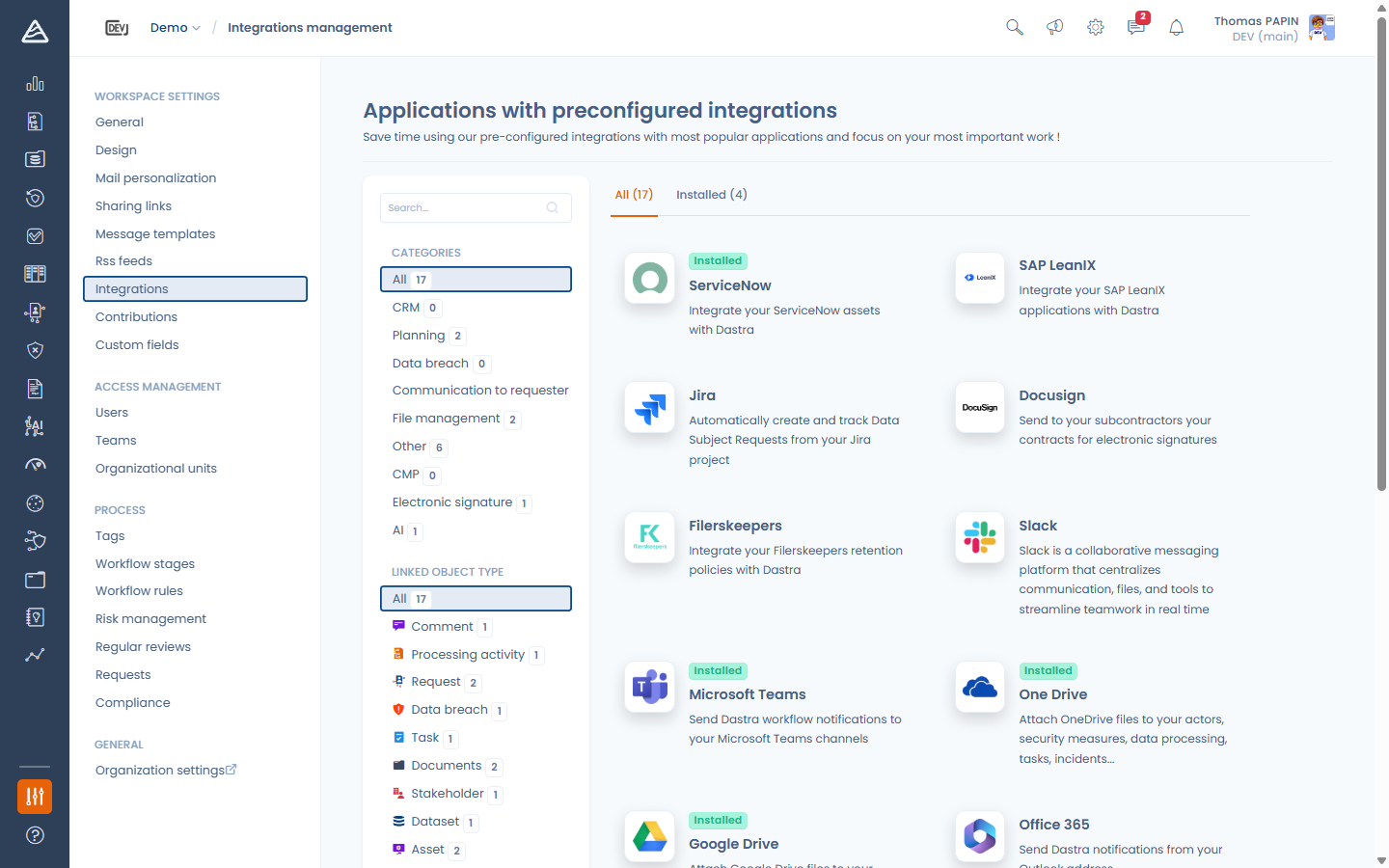
Open **Settings > Integrations** in your workspace. The catalog lists every available integration, filterable by category and by the Dastra object it targets, with an **All / Installed** tab switch.

<figure><img src="https://2697025545-files.gitbook.io/~/files/v0/b/gitbook-x-prod.appspot.com/o/spaces%2F-LvBxs22wUMicv9uWp6C-1972196547%2Fuploads%2Fgit-blob-58a41cc507dee5d8ca44c61008211e15e53b760b%2Fintegrations-catalog.png?alt=media" alt=""><figcaption><p>The integration store</p></figcaption></figure>

Click an integration to open its page: it presents the available **use cases** (each with its data-flow direction, e.g. *ServiceNow > Dastra*), the description, and — for connectors that authenticate against an external tool — a **Manage connections** button.

### Connections

A connection stores what Dastra needs to authenticate against the external tool: either credentials (username/password or API key, stored encrypted by Dastra), or a delegated **OAuth** authorization (no password stored by Dastra).

You can create **several connections to the same tool** — for example a production and a sandbox instance — and choose which one each use case relies on.

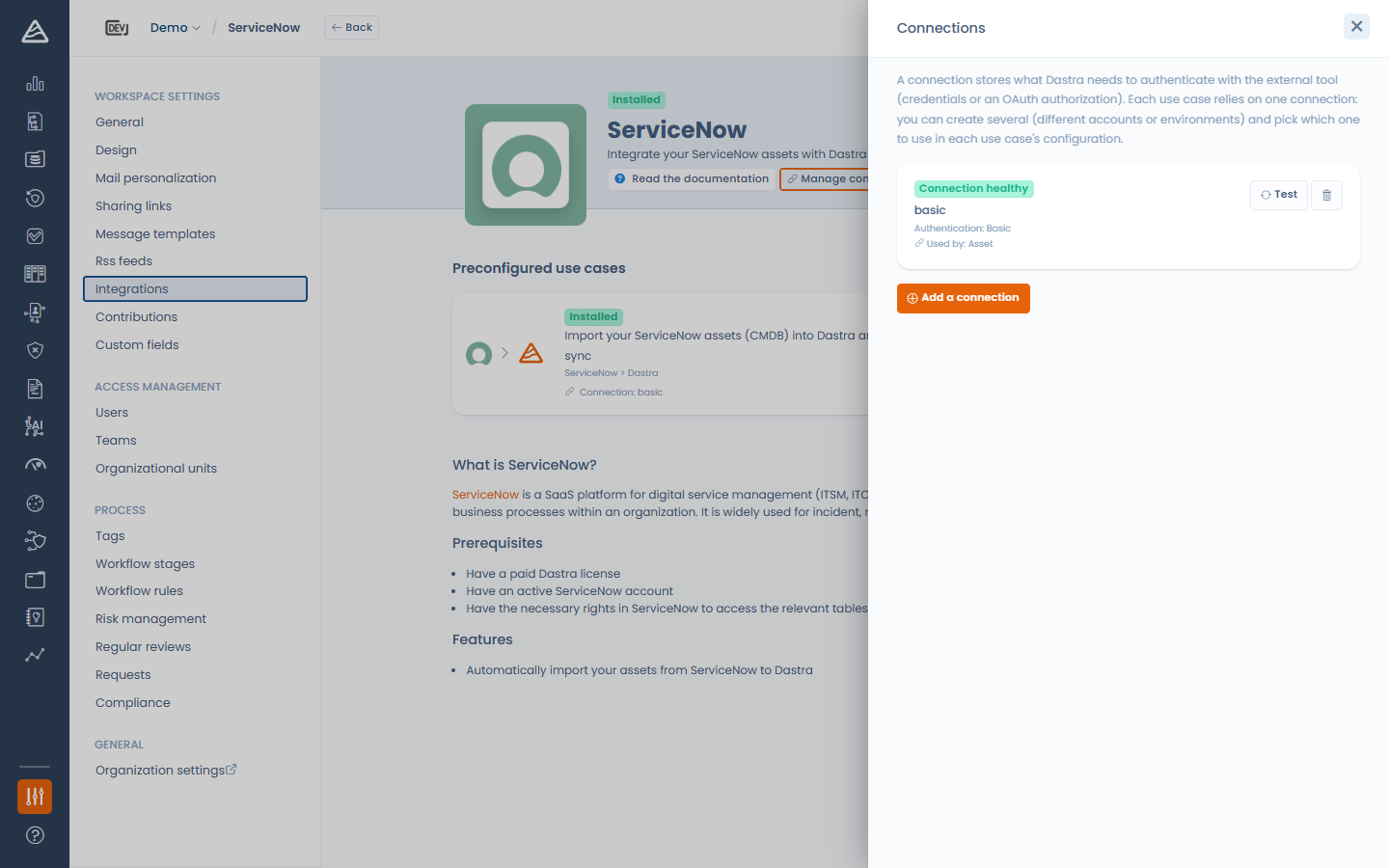
Click **Manage connections** to open the connections panel. For each connection you can see:

* its health: **Connection healthy**, **Awaiting authorization** (OAuth started but not completed) or **Connection in error** (with the last error message and the error count),
* the authentication method,
* the use cases that rely on it.

From this panel you can **Test** a connection (a successful test also clears its error state) or **remove** it.

<figure><img src="https://2697025545-files.gitbook.io/~/files/v0/b/gitbook-x-prod.appspot.com/o/spaces%2F-LvBxs22wUMicv9uWp6C-1972196547%2Fuploads%2Fgit-blob-24ad8c48770f6ee64c99acabe16dbde341db8c61%2Fconnexions-manager.png?alt=media" alt=""><figcaption><p>The connections panel</p></figcaption></figure>

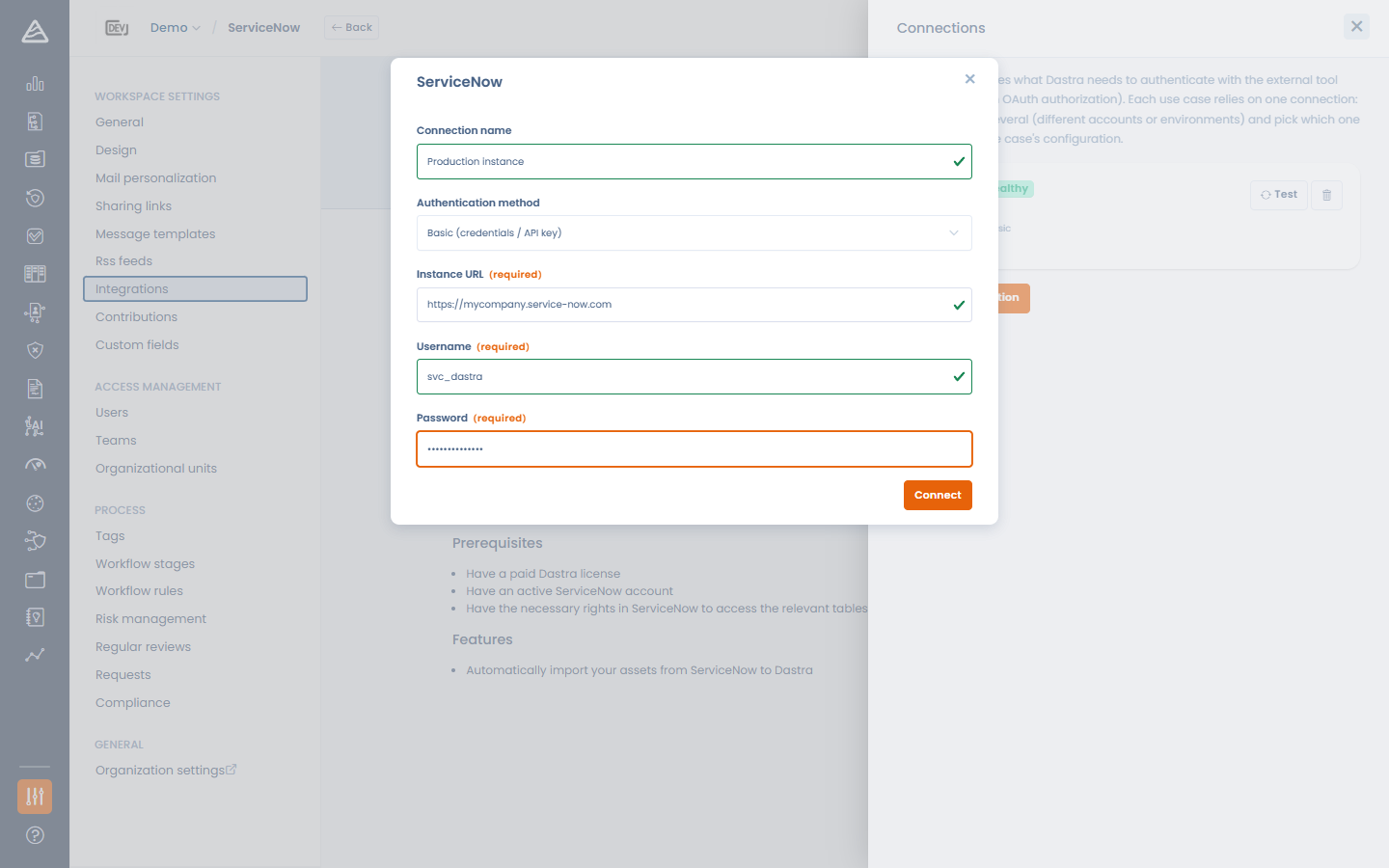
To create a connection, click **Add a connection**:

1. Give it a **Connection name** (e.g. *Production instance*) — optional, but useful when you have several.
2. Pick the **Authentication method** when the connector supports more than one: **Basic (credentials / API key)** or **OAuth**.
3. Fill in the fields requested by the connector (instance URL, API token…).
4. Click **Connect** — or **Save and connect** for OAuth, which redirects you to the external tool to authorize Dastra.

<figure><img src="https://2697025545-files.gitbook.io/~/files/v0/b/gitbook-x-prod.appspot.com/o/spaces%2F-LvBxs22wUMicv9uWp6C-1972196547%2Fuploads%2Fgit-blob-2f99d74c1509cb646caa24682b777e7003ccb5b9%2Fconnexion-setup.png?alt=media" alt=""><figcaption><p>Creating a connection</p></figcaption></figure>

### Installing a use case

Click **Add integration** on a use case card. The setup panel walks you through up to three steps:

1. **Connection** — select an existing connection or create one from the dropdown.
2. **Configuration** — the connector-specific settings (synchronization options, field mapping…). This step unlocks once a valid connection is selected.
3. **Webhook** — only for connectors that receive events from the external tool (e.g. Jira). This step unlocks after the configuration has been saved.

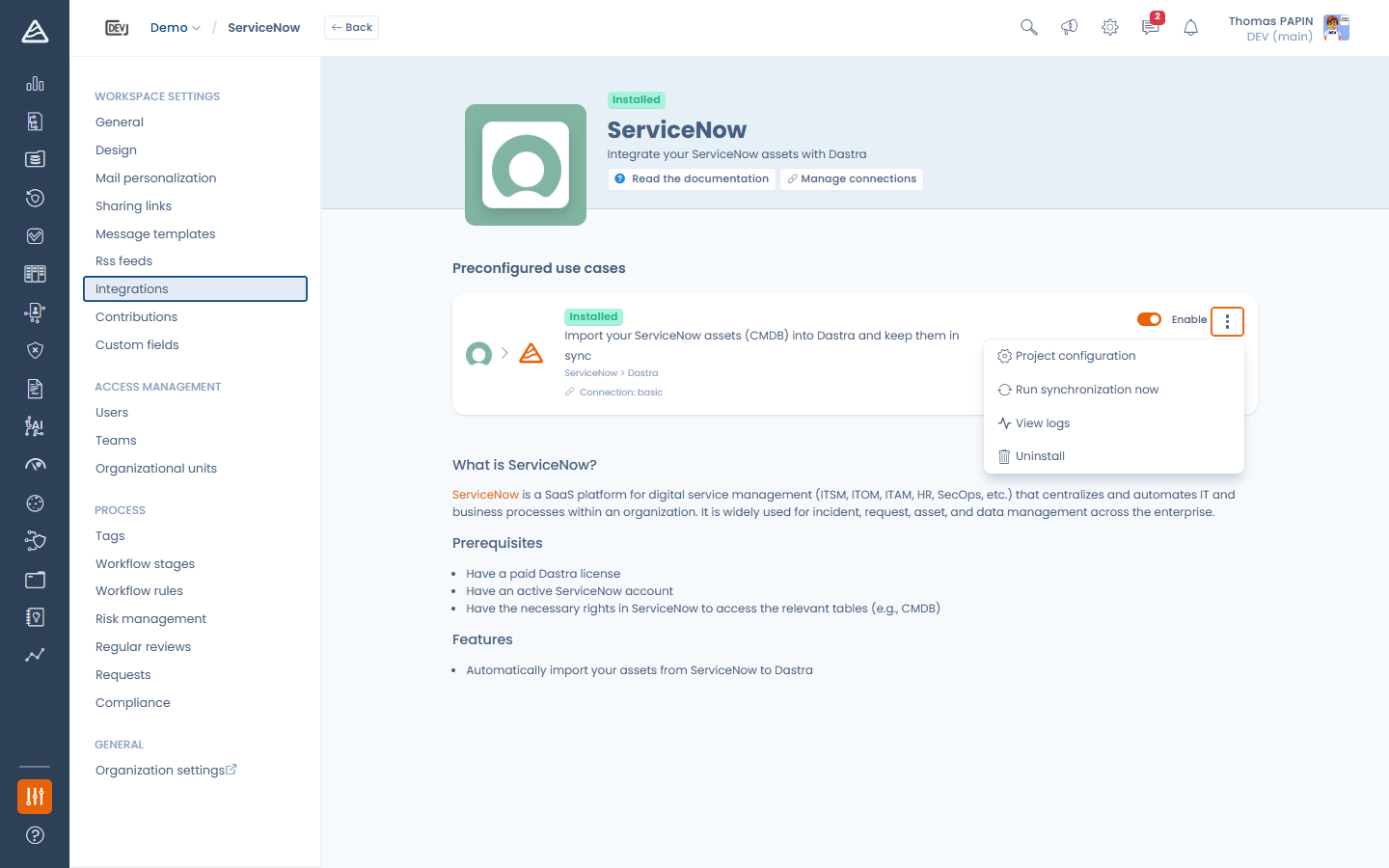
Once installed, the use case card gives you:

* an **Enable** switch,
* a **Project configuration** entry to reopen the configuration,
* **Run synchronization now** (import connectors only) to trigger an immediate sync,
* **View logs** to inspect past executions,
* **Uninstall**.

<figure><img src="https://2697025545-files.gitbook.io/~/files/v0/b/gitbook-x-prod.appspot.com/o/spaces%2F-LvBxs22wUMicv9uWp6C-1972196547%2Fuploads%2Fgit-blob-8bfdc688fffbc422e1f07b6cbbe62277dfb38714%2Fusecase-setup-steps.png?alt=media" alt=""><figcaption><p>An installed use case and its actions</p></figcaption></figure>

{% hint style="warning" %}
Uninstalling a use case erases the associated credentials. Assets, requests and other records created by the integration are kept — they belong to your workspace.
{% endhint %}

### Field mapping

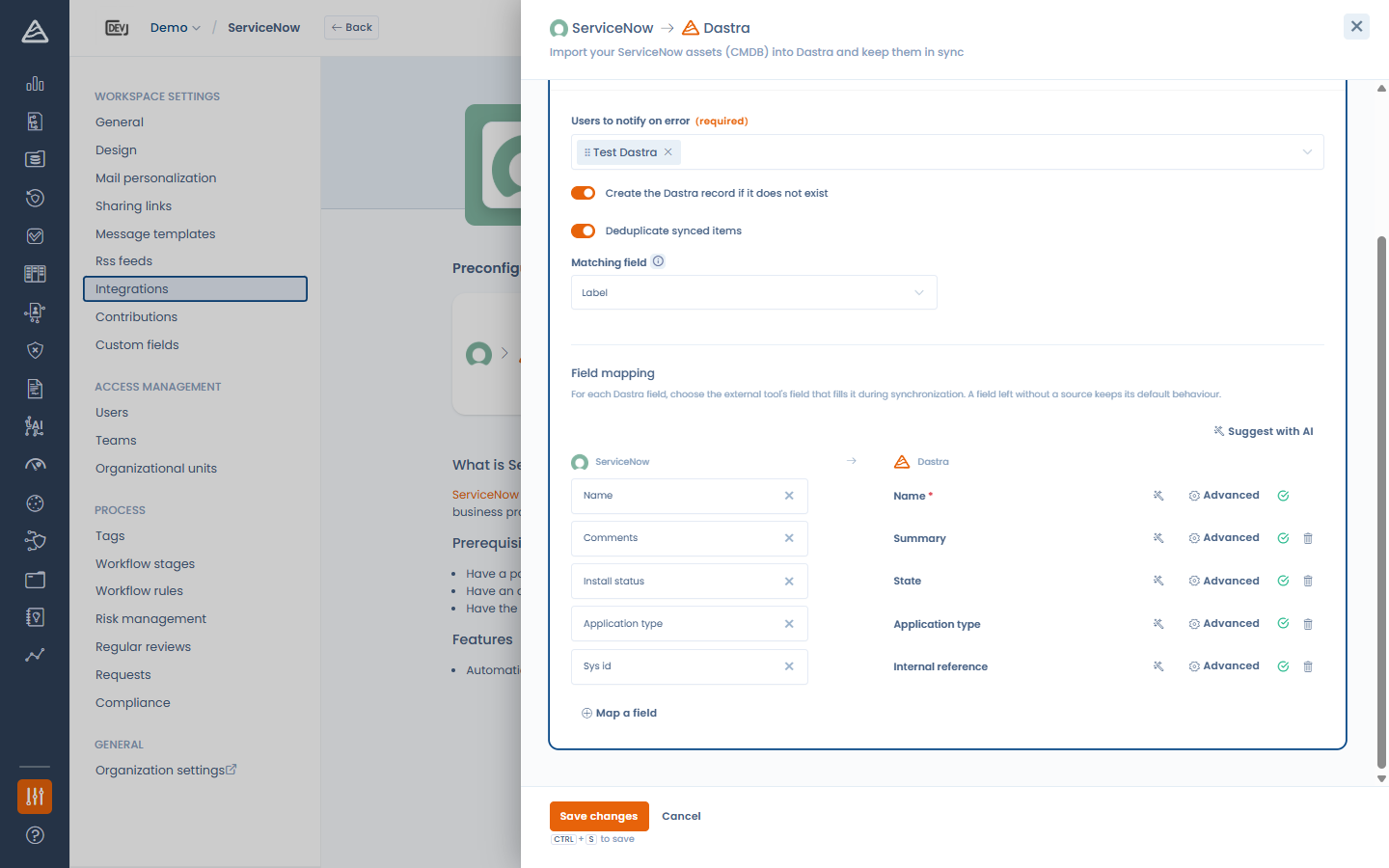
Import use cases include a **Field mapping** section: for each Dastra field, choose the external tool's field that fills it during synchronization. A field left without a source keeps its **default behaviour**.

* Required Dastra fields are marked with a red asterisk; the configuration cannot be saved while a required field has neither a source nor a default value.
* **Map a field** adds a row for any other Dastra field, including your custom fields.
* The source list is fetched live from the external tool whenever possible, so your custom attributes on the source side appear too.

<figure><img src="https://2697025545-files.gitbook.io/~/files/v0/b/gitbook-x-prod.appspot.com/o/spaces%2F-LvBxs22wUMicv9uWp6C-1972196547%2Fuploads%2Fgit-blob-8f3bc7c2923f0a775974e9212fadf9f2d42ede96%2Ffield-mapping-editor.png?alt=media" alt=""><figcaption><p>The field mapping editor</p></figcaption></figure>

#### Advanced options

Each row has an **Advanced** panel with two options:

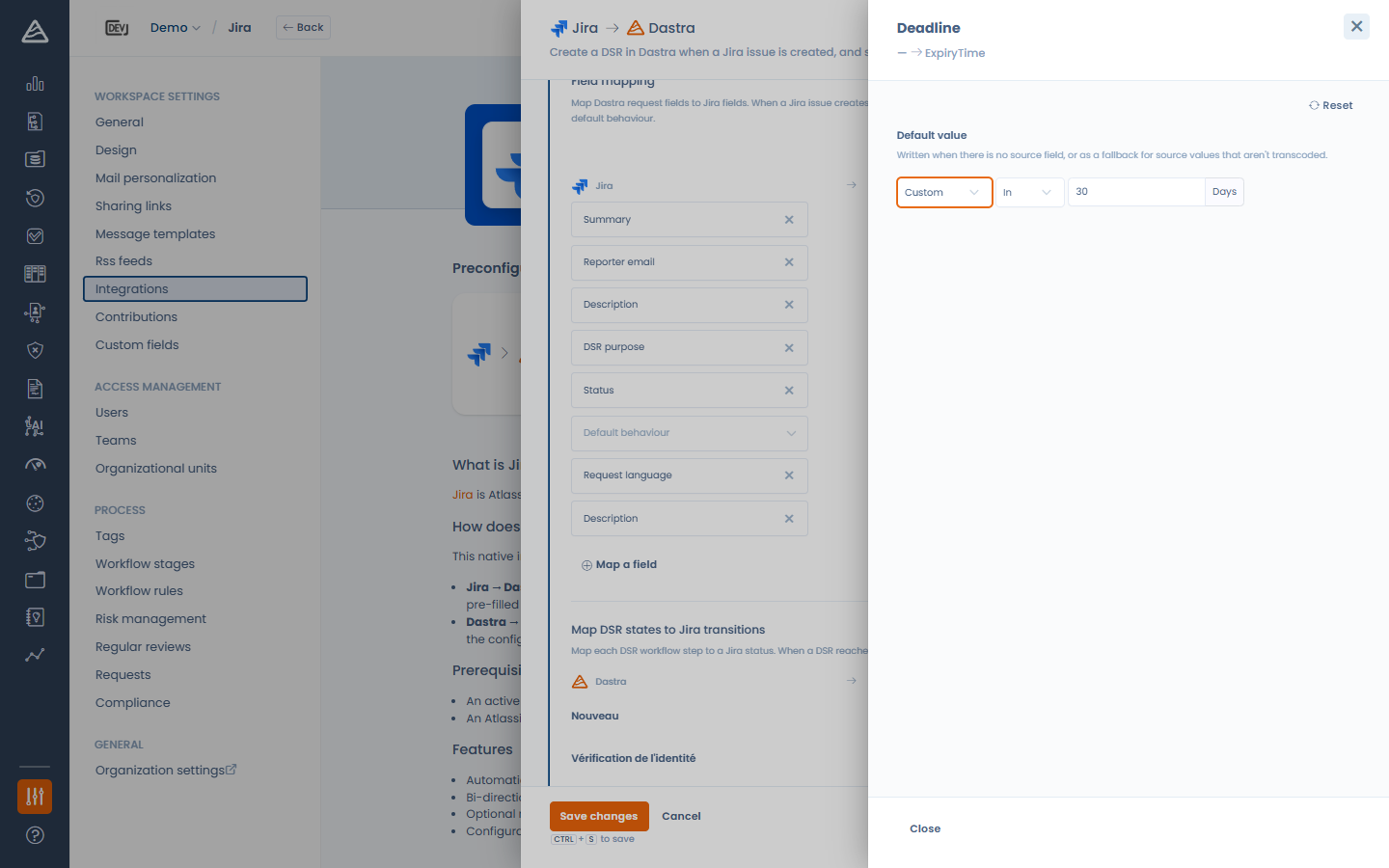
* **Default value** — written when there is no source field, or as a fallback for source values that aren't transcoded. For date fields you can pick **Today** or a relative date (e.g. *in 30 days*), resolved when the record is created.
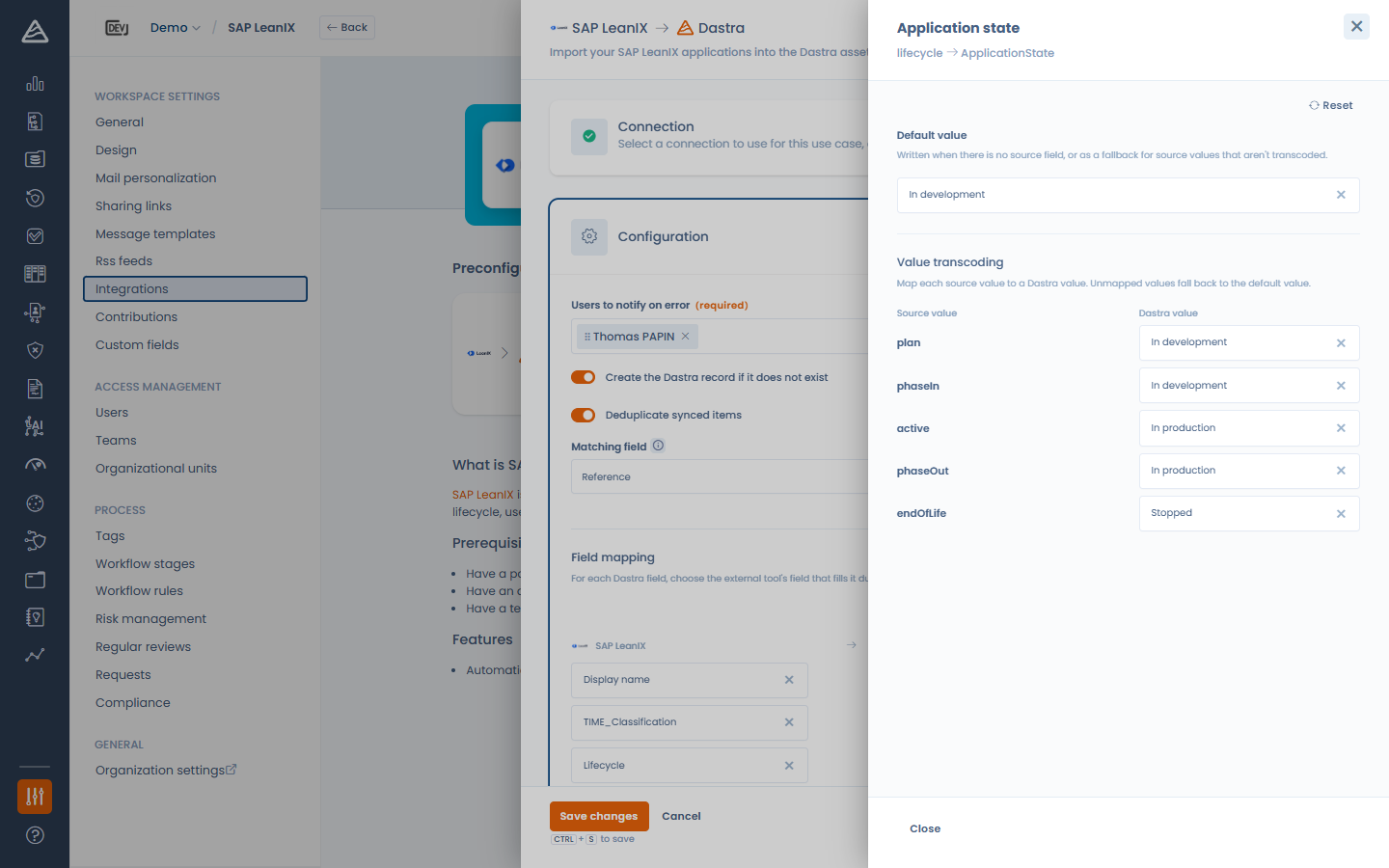
* **Value transcoding** — for closed lists (statuses, lifecycle stages…): map each source value to a Dastra value. Values you don't map fall back to the default value.

<figure><img src="https://2697025545-files.gitbook.io/~/files/v0/b/gitbook-x-prod.appspot.com/o/spaces%2F-LvBxs22wUMicv9uWp6C-1972196547%2Fuploads%2Fgit-blob-1183e4dae196bf6e1611c9d384261b4efe22a28e%2Ffield-mapping-advanced.png?alt=media" alt=""><figcaption><p>Default value and value transcoding</p></figcaption></figure>

For date fields, the default value can be dynamic — resolved when the record is created:

<figure><img src="https://2697025545-files.gitbook.io/~/files/v0/b/gitbook-x-prod.appspot.com/o/spaces%2F-LvBxs22wUMicv9uWp6C-1972196547%2Fuploads%2Fgit-blob-27e1ccf7f5e4cbb793986d8d6ce0f9867b009ca1%2Ffield-mapping-default-date.png?alt=media" alt=""><figcaption><p>A relative default date (here: in 30 days) on the request deadline</p></figcaption></figure>

#### AI suggestions

If the AI assistant is enabled on your account, the **Suggest with AI** button proposes a full mapping (and each row has its own suggestion button). Suggestions never overwrite fields you already mapped, and are always submitted for your review before saving.

### Synchronization and logs

* Import connectors (ServiceNow, SAP LeanIX, Filerskeepers) synchronize **daily**; you can also trigger a sync at any time with **Run synchronization now**.
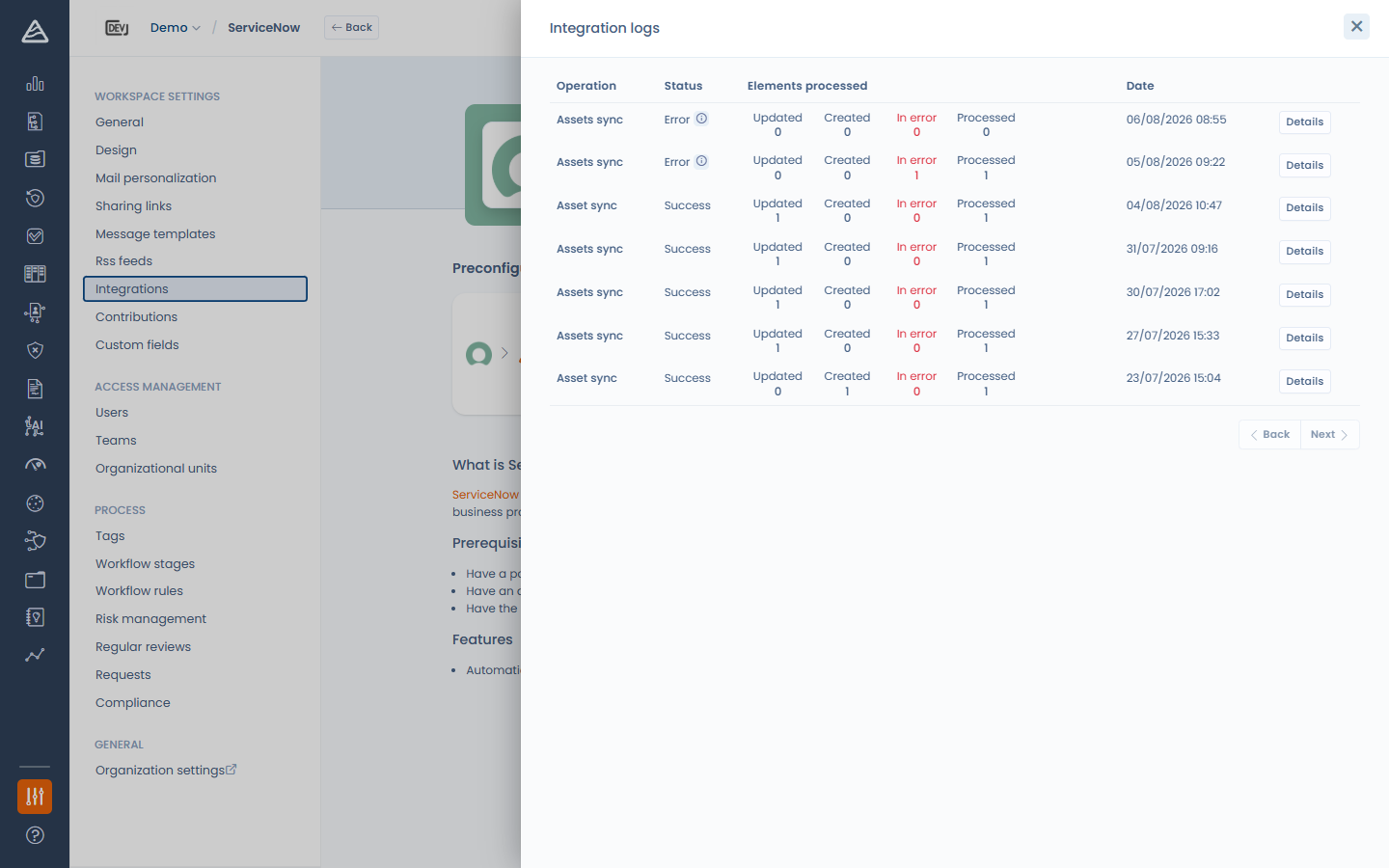
* **View logs** shows each execution with its outcome and counters: created, updated, flagged and in-error items, with the error details when something went wrong.

<figure><img src="https://2697025545-files.gitbook.io/~/files/v0/b/gitbook-x-prod.appspot.com/o/spaces%2F-LvBxs22wUMicv9uWp6C-1972196547%2Fuploads%2Fgit-blob-098e4fd922931daf9e2791fe062b552b1a157401%2Fintegration-logs.png?alt=media" alt=""><figcaption><p>Integration logs</p></figcaption></figure>


---

# Agent Instructions
This documentation is published with GitBook. GitBook is the documentation platform designed so that both humans and AI agents can read, navigate, and reason over technical content effectively. Learn more at gitbook.com.

## Querying This Documentation
If you need additional information that is not directly available in this page, you can query the documentation dynamically by asking a question.

Perform an HTTP GET request on the current page URL with the `ask` query parameter, and the optional `goal` query parameter:

```
GET https://doc.dastra.eu/en/features/integrations/connections-and-field-mapping.md?ask=<question>&goal=<endgoal>
```

`ask` is the immediate question: it should be specific, self-contained, and written in natural language.
`goal` is optional and describes the broader end goal you are ultimately trying to accomplish on behalf of the user. GitBook uses it to tailor the answer towards what is most useful for that goal.

The response will contain a direct answer to the question and relevant excerpts and sources from the documentation.

Use this mechanism when the answer is not explicitly present in the current page, you need clarification or additional context, or you want to retrieve related documentation sections.