> For the complete documentation index, see [llms.txt](https://doc.dastra.eu/llms.txt). Markdown versions of documentation pages are available by appending `.md` to page URLs; this page is available as [Markdown](https://doc.dastra.eu/en/features/gerer-les-exercices-des-droits/edit-and-process-requests.md).

# Edit and process requests

Dastra lets you manage the entire lifecycle of a data subject right request (DSAR).\
From the interface, you can:

* **Qualify the request**: type of right concerned, organizational unit, deadline management.
* **Verify the identity** of the requester by completing or adjusting the information collected.
* **Process the associated data** by consulting the linked datasets, uploading evidence and notifying the owners.
* **Respond directly** to the requester thanks to the AI assistant, with full traceability of the exchanges.

Each step is documented and recorded in the history, ensuring legal compliance and a clear response to data subjects.

***

### Qualifying the request

When a request is registered, it appears in the record of requests.\
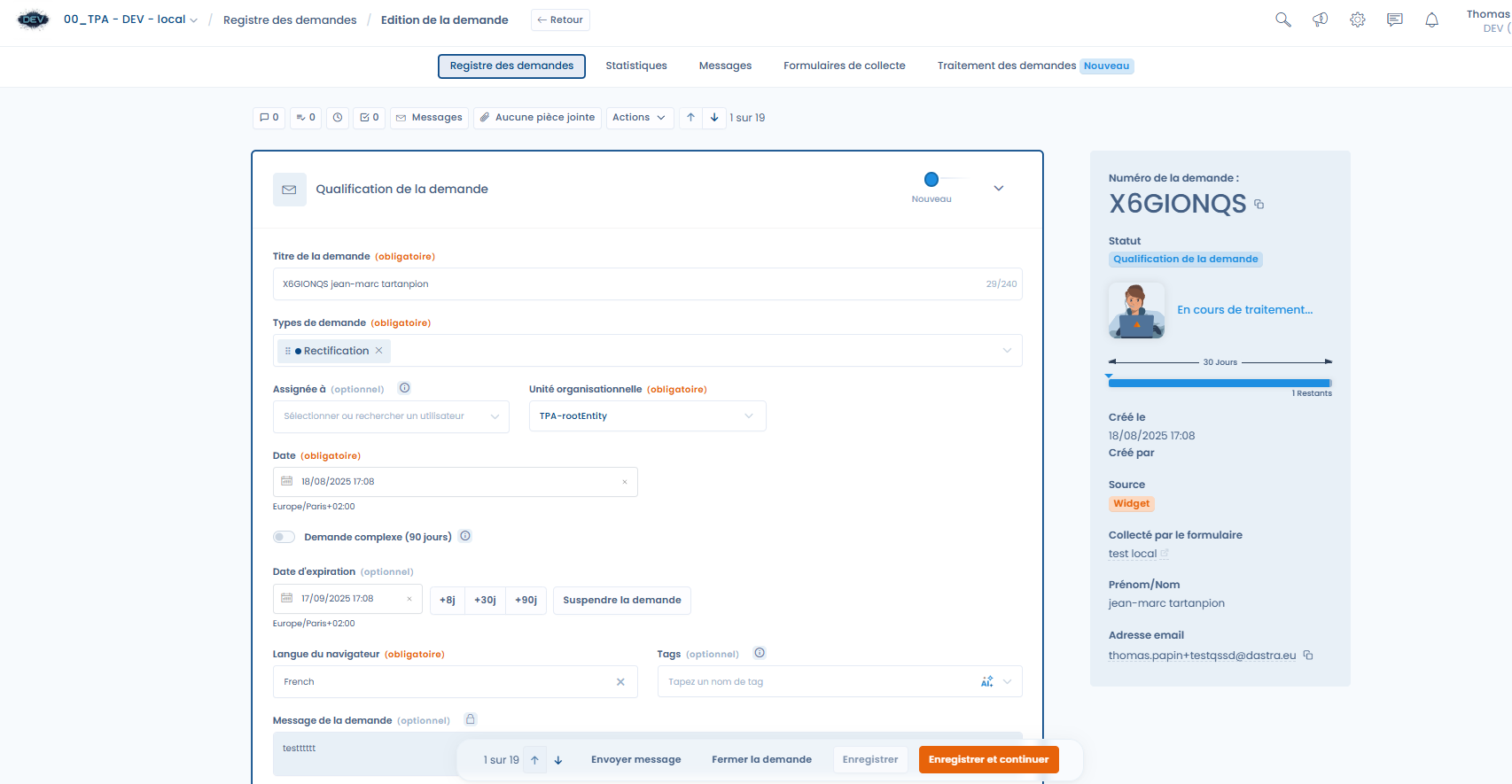
From the **qualification** screen, you can:

1. Define the **type of right** concerned (access, rectification, erasure, objection, etc.).
2. Assign the request to an **organizational unit**.
3. Manage the **processing deadlines**:
   * Legal deadline of 30 days.
   * Option to mark the request as complex (90 days).
   * Temporarily suspend the deadline if necessary.

<figure><img src="/files/icNytcjlZ9koREHSOr2J" alt=""><figcaption><p>The request management interface</p></figcaption></figure>

***

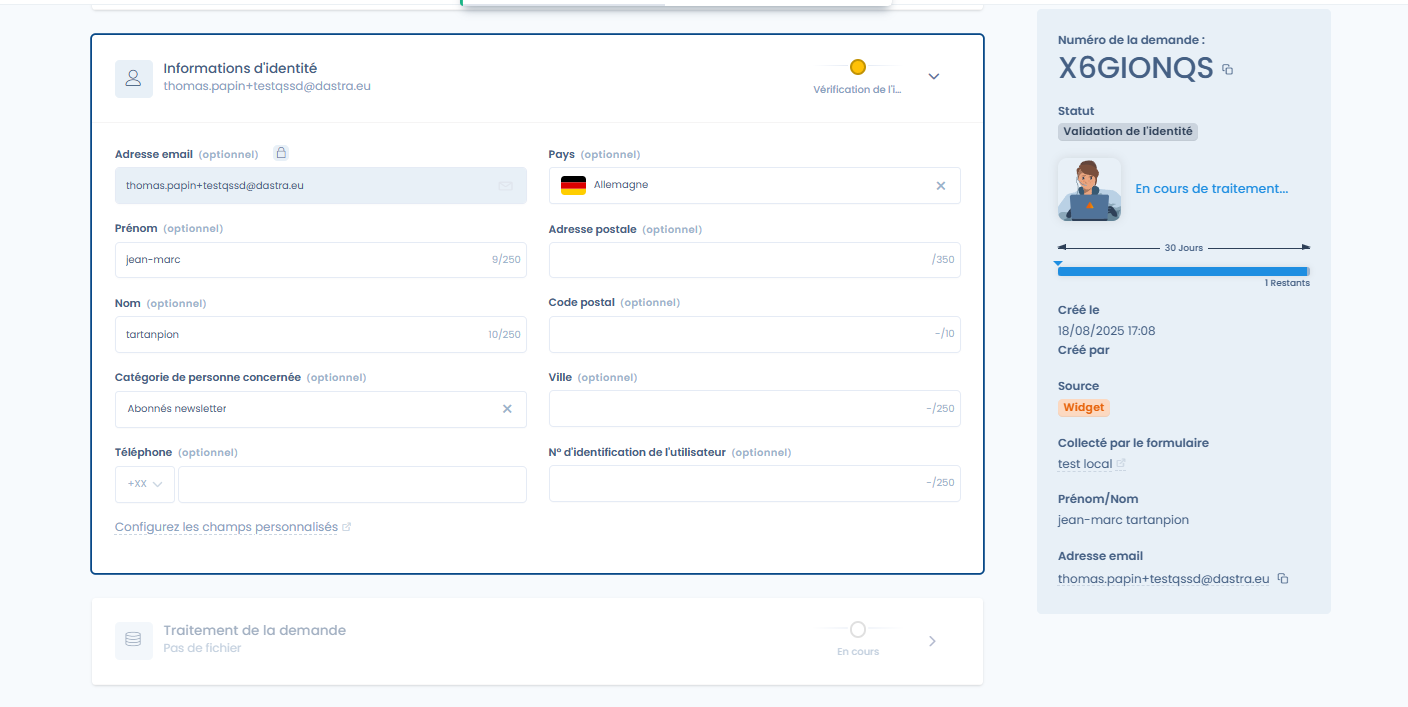
### Verifying the identity

Dastra makes it possible to verify the identity of the person who submitted the request.\
You can complete or modify the information collected via the initial form:

* Email address, first name, last name.
* Additional data: country, postal address, phone number, user identifier, etc.
* Data subject category (e.g. newsletter subscribers, customers, employees).

<figure><img src="/files/zVcjdZHa1C1q07jBBAqp" alt=""><figcaption><p>Section on the requester's identity</p></figcaption></figure>

***

### Processing the request

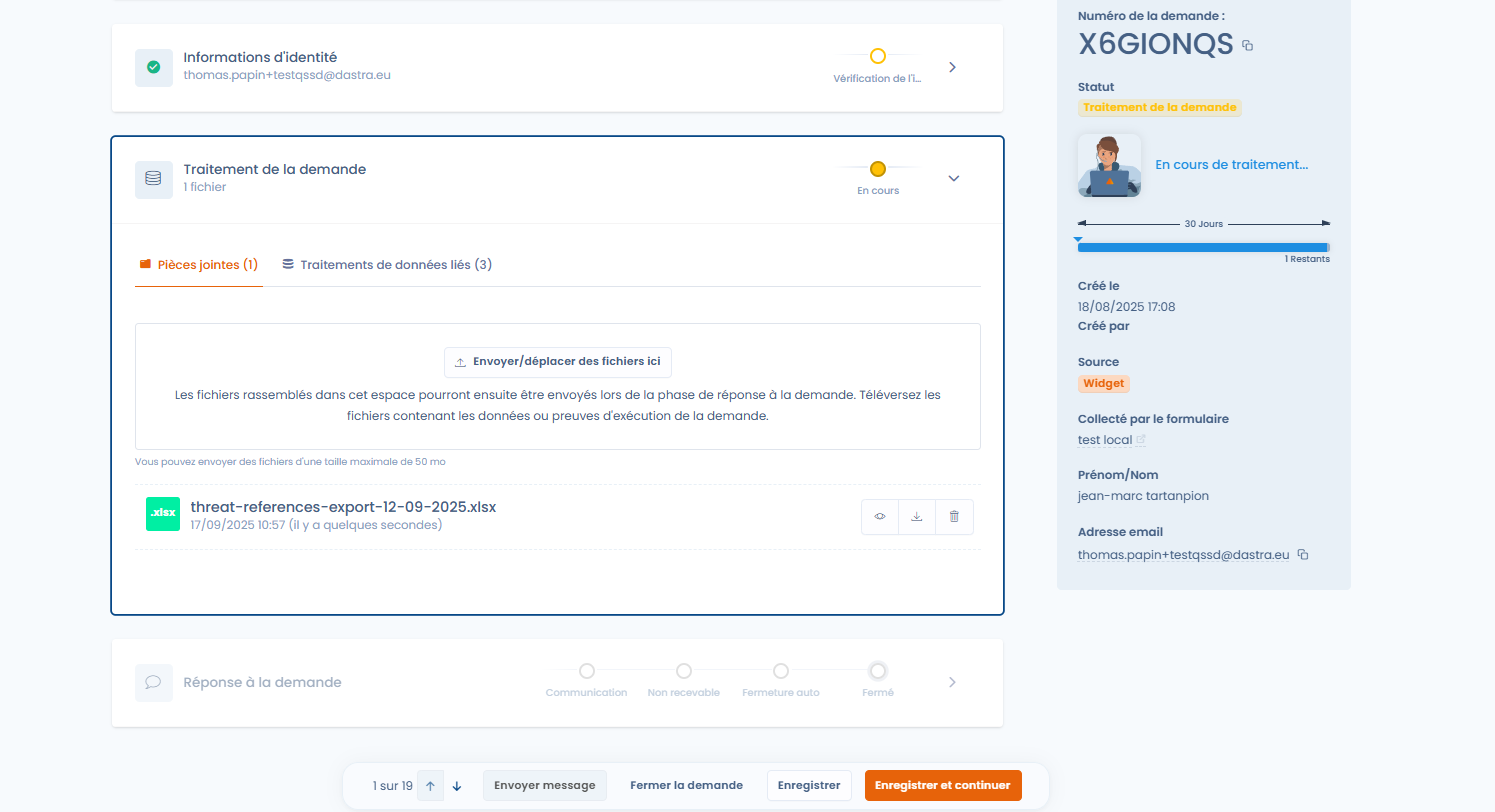
The **Request processing** tab brings together all the actions related to execution.

#### Attachments

You can upload evidence files or exports containing the requester's data.\
These files can then be attached when responding.

<figure><img src="/files/2NKHYhbEVjY2qbE0wFMd" alt=""><figcaption><p>Adding files to the request</p></figcaption></figure>

***

#### Related data processing

Dastra automatically identifies the datasets associated with the **data subject category**.\
Each dataset must be processed individually.

* Available statuses: **Pending** / **Processed**.
* Display of the overall progress (progress as a percentage).

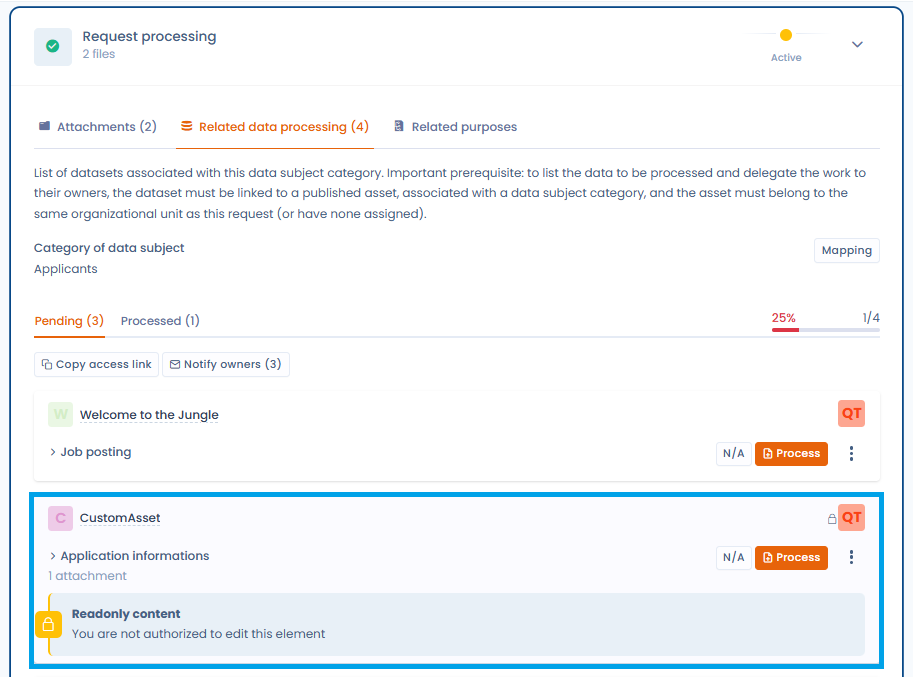
The **Datasets** tab displays all the relevant datasets according to a **cumulative model**: those attached to the organizational unit assigned to the request, those of **all its parent units** (up to the root of the hierarchy) and those of **all its descendant units**. This view ensures that no inherited dataset is overlooked during processing.

<figure><img src="/files/lBIrRHOnmfGOPiVsg0d6" alt=""><figcaption><p>Advanced processing by dataset</p></figcaption></figure>

{% hint style="info" %}
A request cannot be declared 100% processed as long as inherited datasets have not been processed or explicitly marked as **Not applicable**.
{% endhint %}

If the operator in charge of the request does not have access rights to some of the datasets displayed, a **visual indication** invites them to contact the owners concerned.

<figure><img src="/files/KzOXLPe9cKpXRxWyrpKB" alt="Datasets tab displaying the datasets inherited from the parent and descendant units"><figcaption><p>The datasets inherited from the parent and descendant units are displayed according to a cumulative model</p></figcaption></figure>

***

**Details of a dataset**

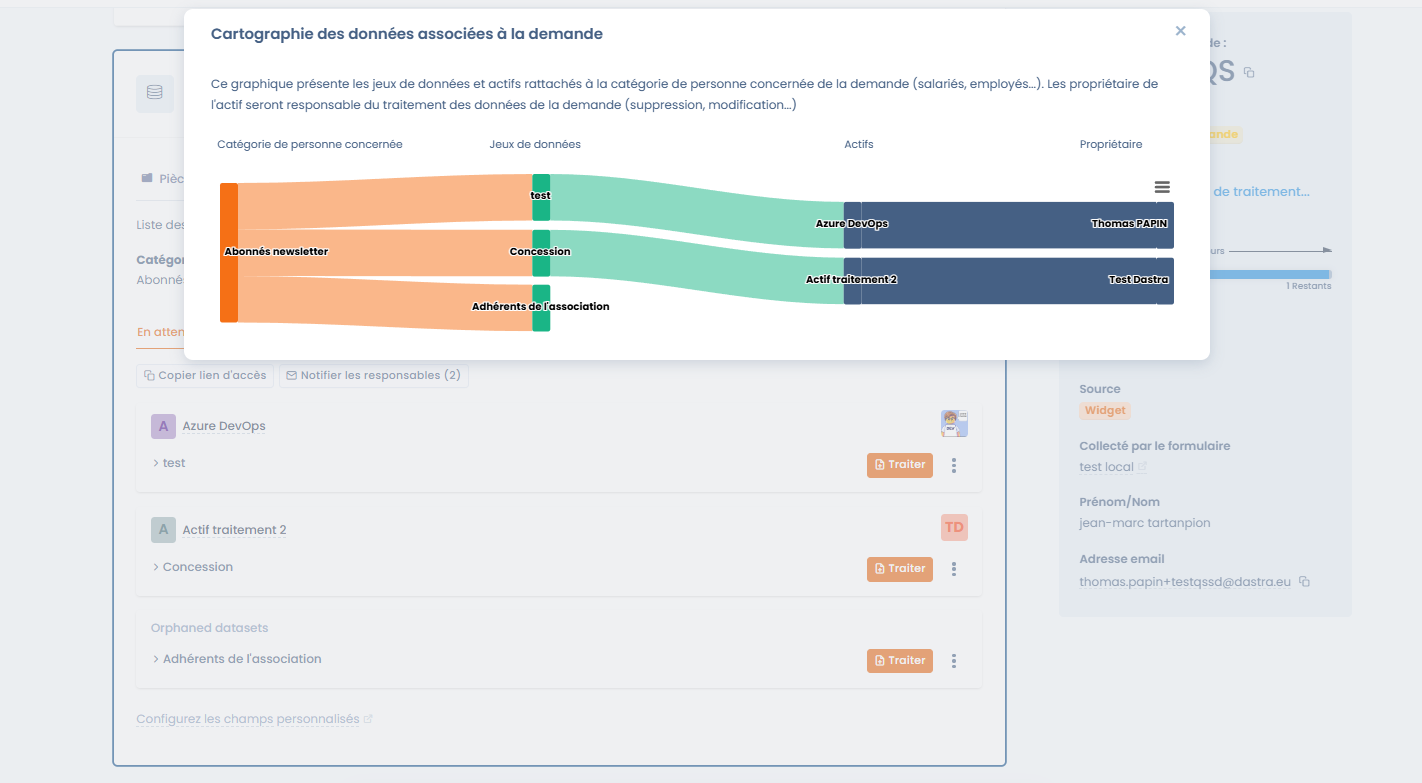
You can directly view the links between the dataset and the assets by clicking on the **Mapping** button.

<figure><img src="/files/Ay5YgbK21dGhagQVZsDL" alt=""><figcaption><p>View the link between the data subject category and the owner to contact</p></figcaption></figure>

By clicking on **Process**, you access the detailed information:

* Categories of data concerned (professional life, personal life, identity, etc.).
* Legal basis and retention period.
* Terms of erasure after the retention period.

<figure><img src="/files/bRjsTBZChybPN6AgdXq4" alt=""><figcaption><p>Quick access to the asset detail</p></figcaption></figure>

***

**Marking a processing as processed**

For each dataset:

1. Review the information.
2. Justify the processing carried out (e.g. erasure, rectification).
3. Add evidence files if necessary.
4. Click on **Mark as processed**.

<figure><img src="/files/GHBIoNJHIS9smVBXbVEX" alt=""><figcaption><p>Request processing interface specific to the asset</p></figcaption></figure>

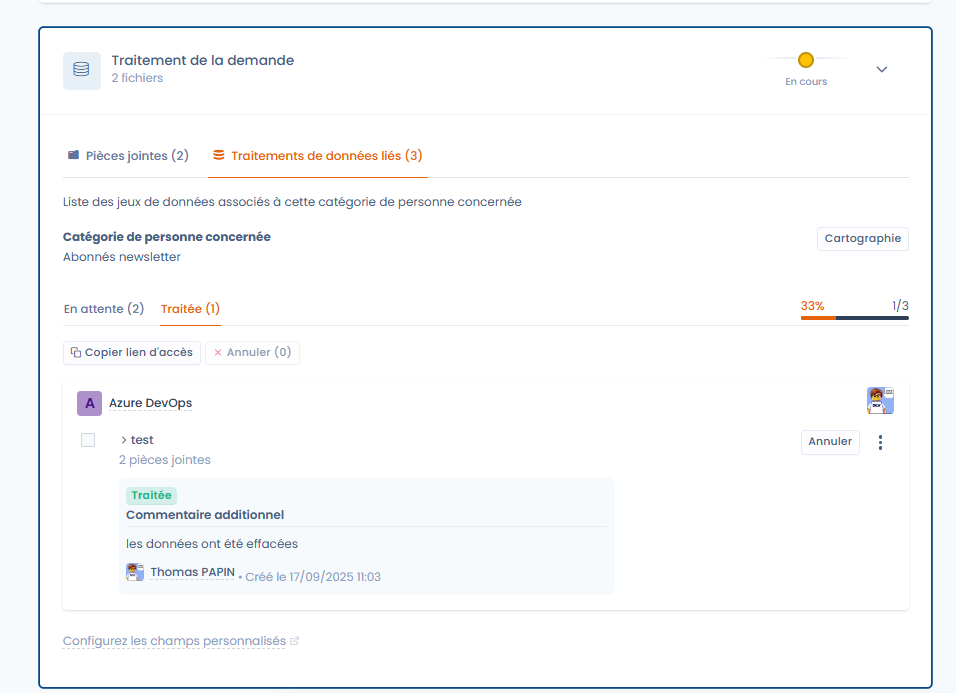
Once marked as processed, the status is updated and a comment can be added.

<figure><img src="/files/rlVhpbQuYikZ2ssmbxhp" alt=""><figcaption></figcaption></figure>

***

#### Collaboration and notifications

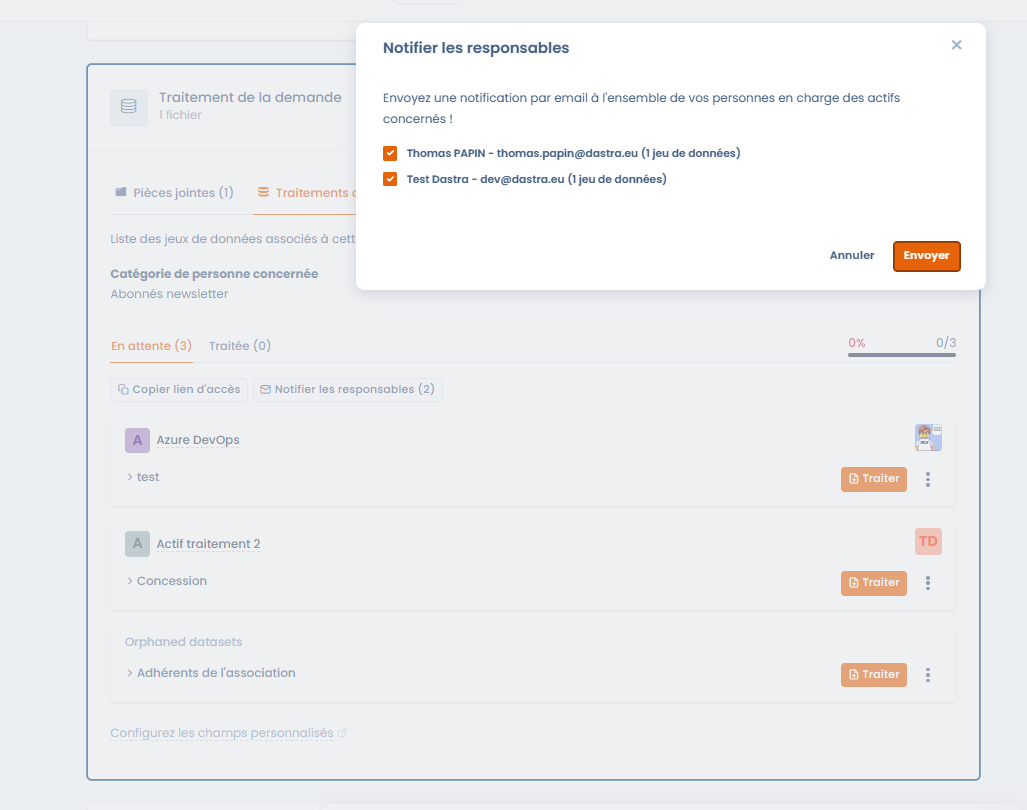
You can automatically notify the owners of the assets concerned.\
A window makes it possible to select the people to notify by email.

<figure><img src="/files/UWAI9IHMeAYyWxaN6HJ7" alt=""><figcaption><p>Quickly notify the owners of the assets</p></figcaption></figure>

***

### Responding to the request

Once processing is complete, it is possible to respond directly to the requester.

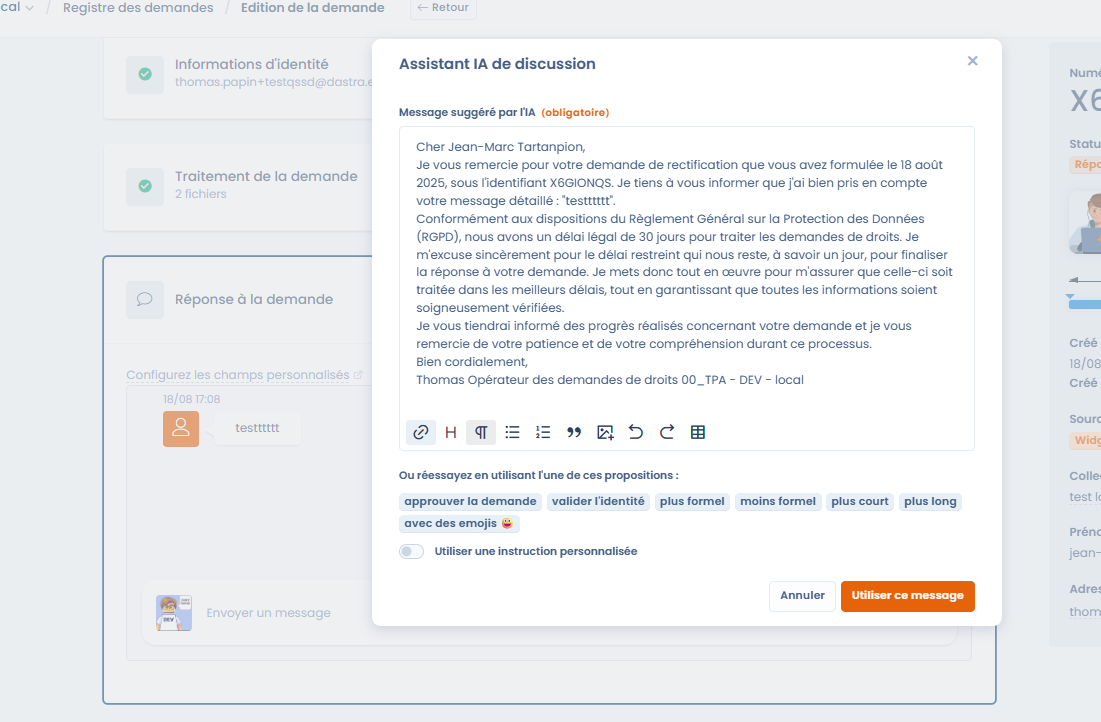
* The **AI Assistant** suggests a compliant and customizable message.
* You can adjust the tone: more formal, shorter, longer, with emojis.
* The final message can be sent directly from Dastra.

<figure><img src="/files/6kS2xjrXrxg5a41yW0gJ" alt=""><figcaption><p>Exchange messages with the requester, using AI if you wish</p></figcaption></figure>

***

### Additional actions on a request

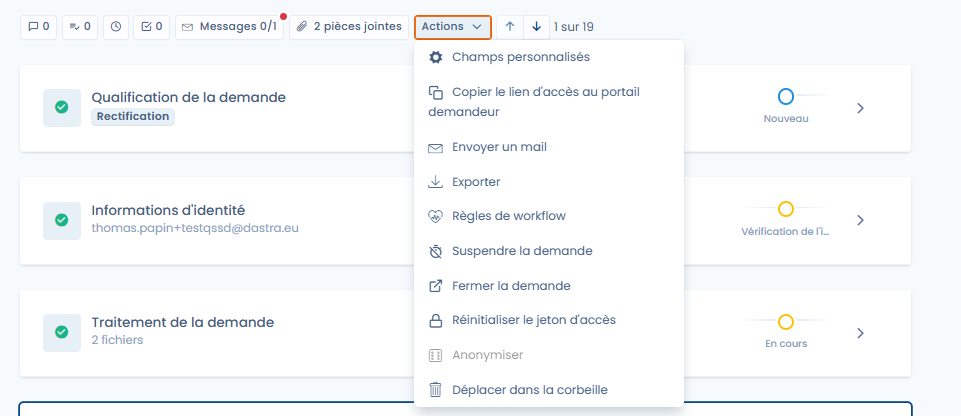
In addition to the main steps (qualification, verification, processing and response), Dastra offers an **Actions** menu that makes it possible to carry out advanced operations on a request.

<figure><img src="/files/WGMMQZnP9eaInHJLlud0" alt=""><figcaption><p>Quickly access the many additional actions available</p></figcaption></figure>

The available actions notably include:

* **Custom fields**: add or modify specific fields to enrich the request.
* **Copy the requester portal access link**: share a direct link with the data subject.
* **Send an email**: send a message related to the request directly from the platform.
* **Export**: export the information of the request.
* **Workflow rules**: apply or trigger an automation rule.
* **Suspend the request**: pause the legal processing deadline (see below).
* **Close the request**: manually mark the request as completed.
* **Reset the access token**: recreate a secure link for the requester.
* **Anonymize**: erase the identifying data linked to the request.
* **Move to the trash**: archive or delete the request.

***

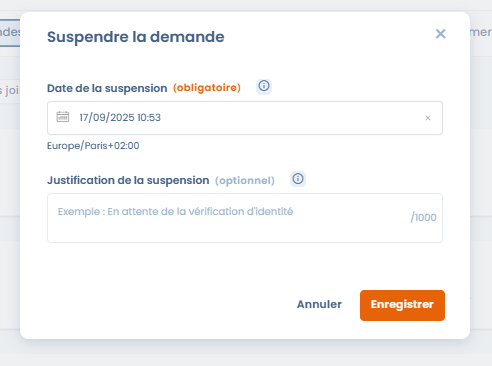
#### Suspending a request

In some cases, it is necessary to **temporarily suspend** a request (for example, while awaiting identity verification).\
The suspension interrupts the legal deadline, which only resumes once the suspension is lifted.

<figure><img src="/files/vfPP1RyMhkvmVjjan8Ra" alt=""><figcaption><p>Suspend a request while awaiting a response from the requester, for example</p></figcaption></figure>

* **Suspension date**: mandatory.
* **Justification**: free-text field to document the reason (e.g. awaiting supporting documents).

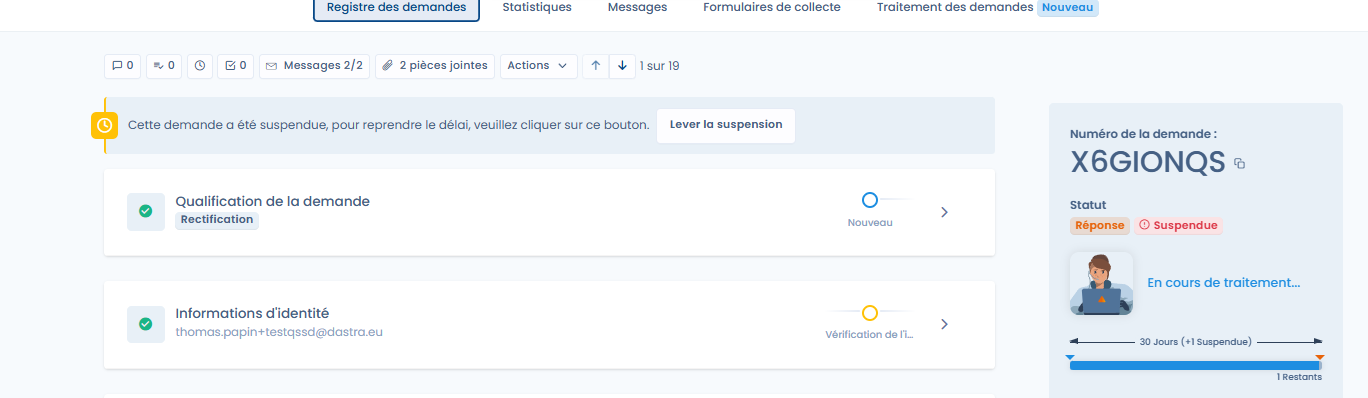
Once the request is suspended, the interface clearly displays the state and offers a button to lift the suspension.

<figure><img src="/files/acCHgElmeH7linbudlrk" alt=""><figcaption></figcaption></figure>

The counter of remaining days is automatically recalculated, taking the suspension period into account.

***

### Overall tracking

Each request keeps the complete history:

* Messages exchanged.
* Attachments added.
* Status and processing progress.

This makes it possible to ensure traceability and compliance in the event of an audit.


---

# Agent Instructions
This documentation is published with GitBook. GitBook is the documentation platform designed so that both humans and AI agents can read, navigate, and reason over technical content effectively. Learn more at gitbook.com.

## Querying This Documentation
If you need additional information that is not directly available in this page, you can query the documentation dynamically by asking a question.

Perform an HTTP GET request on the current page URL with the `ask` query parameter, and the optional `goal` query parameter:

```
GET https://doc.dastra.eu/en/features/gerer-les-exercices-des-droits/edit-and-process-requests.md?ask=<question>&goal=<endgoal>
```

`ask` is the immediate question: it should be specific, self-contained, and written in natural language.
`goal` is optional and describes the broader end goal you are ultimately trying to accomplish on behalf of the user. GitBook uses it to tailor the answer towards what is most useful for that goal.

The response will contain a direct answer to the question and relevant excerpts and sources from the documentation.

Use this mechanism when the answer is not explicitly present in the current page, you need clarification or additional context, or you want to retrieve related documentation sections.