Use cases

Step-by-step guide to all AI Assistant features in Dastra — processing activities, questionnaires, DSRs, contracts, AI systems, and more.

Processing activities

Generate a processing activity

Quickly generate a processing activity in the format expected by Dastra from a short description. The assistant will suggest a name, one or more datasets with their fields, a retention period, security measures, recipients, and a description.

  1. Click Create a processing activity > Generate with AI assistant

  2. Enter a short description of your processing activity

  3. Click Next and wait a few moments

  4. On the summary screen, apply your corrections and click Create

Generate a dataset

  1. Go to the Datasets page

  2. Click Create a dataset > Create with AI assistant

  3. Enter a short description of your dataset

  4. Click Next and wait a few moments

  5. On the summary screen, apply your corrections and click Create

Generate a privacy notice

  1. Go to the editing page of a processing activity

  2. In section 11. Documentation, click Generate a privacy notice

  3. Choose the desired format — you can customise the instructions by selecting Custom

  4. Click Generate, then copy or insert the text into your documentation

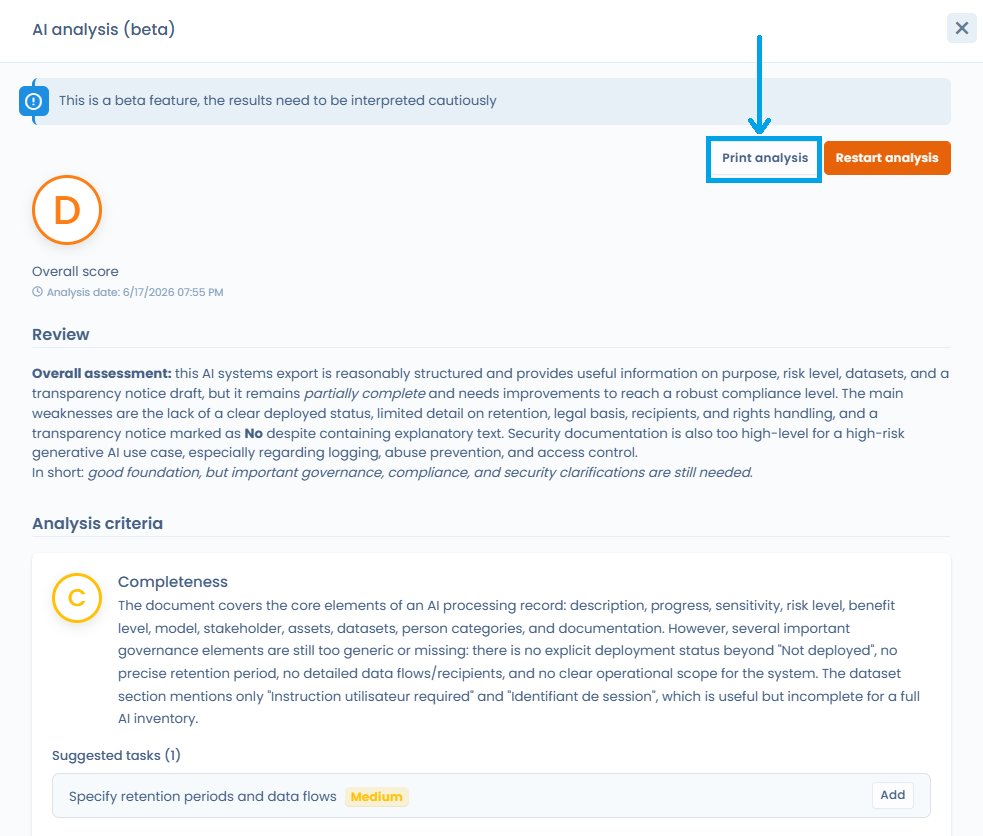
Generate a compliance analysis for a processing activity

The assistant can analyse an existing processing activity and produce an assessment of its compliance with GDPR documentation requirements.

Beta feature: results may be less consistent than a stable feature and should be treated with extra care. This analysis is a decision-support tool, not legal advice.


Questionnaires (DPIA, risk analysis…)

Generate an AI-assisted response

  1. Go to Questionnaires and select the desired template (e.g. CNIL DPIA)

  2. Click Schedule a questionnaire

  3. Select AI-assisted response

  4. Specify the processing activity to use as a source, or enter custom instructions

  5. Once the response is generated, apply your corrections directly in the questionnaire

Generate a questionnaire template

  1. Go to Questionnaires and click to create a questionnaire template

  2. Select Create from AI

  3. Provide a description of the questionnaire (up to 300 words) and a type

  4. Adjust the number of sections and questions

  5. Click Generate


Data subject rights requests (DSR)

Generate a response to a request

Generate responses in multiple languages, with customisation options (length, formal or informal tone, etc.).

  1. Open a DSR currently being processed

  2. Fill in the information up to the Communication / Transmission step

  3. Click Generate with AI — the assistant generates a response based on the following information:

    • First and last name of the requester

    • Request message

    • Language to use

    • Workspace name

    • Purposes of the relevant processing activity

    • Name of the request operator

    • Request date and days remaining

    • Request status and ID

  4. Edit the proposed text or use the reformulation options (shorten, lengthen, change tone)

  5. Click Validate this message, add any attachments, then click Send

A rate limit per minute is in place for this feature.

AI Act — Article 50: when a response is generated by the AI assistant, the strict transparency obligation of Art. 50(1) (informing the recipient that they are interacting with an AI system) does not apply, because there is no direct interaction between the AI system and the data subject — a human user reviews, validates and sends the response. That said, disclosing that the response was AI-assisted remains a recommended best practice under the GDPR principle of fairness (Art. 5(1)(a)). See the FAQ for full details.


Assets and actors

Generate an asset

Quickly generate an asset (software, tool, etc.) in the format expected by Dastra. The assistant will suggest a name, links to the actor's privacy policy, and create an actor as publisher.

  1. Click Create an asset > Generate with AI assistant

  2. Enter a description or a URL to the privacy policy

  3. Review and complete the suggested information before validating


Data breaches

Generate a post-mortem

From an existing breach record, the assistant generates a structured post-mortem document including a description of the incident, affected data, and measures taken.

Access this feature from the editing page of a breach record, in the section dedicated to documentation.


Contracts

Extract contract metadata

Import a contract document (PDF or URL) and let the assistant automatically extract its metadata: parties, subject, duration, key clauses, etc.

Access this feature from the Contracts module when creating or editing a contract.


Custom documents and reports

Generate a custom document

Enter your own instructions and optionally provide a source document. The assistant generates a structured document according to your specifications.

Generate a custom report

From the Custom reports module, describe the desired report in natural language. The assistant produces a first version that you can then refine.


AI systems

Generate an AI system description

  1. Go to the AI Systems module

  2. Create or open an AI system record

  3. Click Generate with AI assistant in the description field

  4. Enter a free description or provide a URL

Generate a notice for an AI system

From an AI system record, click Generate a notice to automatically produce the information document intended for users or data subjects.

Generate a risk analysis for an AI system

The assistant analyses the fields filled in on the AI system record and produces an assessment of the associated risks.

Beta feature: treat with extra care and validate with an expert before any decision.


Frameworks and controls

Suggest controls, requirements and tests

From a compliance framework in the compliance module, the assistant can suggest relevant controls, requirements or tests based on the context of the relevant object (name, description, associated framework).

Last updated

Was this helpful?