> For the complete documentation index, see [llms.txt](https://doc.dastra.eu/llms.txt). Markdown versions of documentation pages are available by appending `.md` to page URLs; this page is available as [Markdown](https://doc.dastra.eu/en/features/cookies/banner/configure.md).

# Set up the cookie consent banner

Learn how to configure the cookie consent banner, install it on your website and generate the cookie policy.

Dastra lets you set up a cookie consent banner on your website that follows the CNIL (French data protection authority) recommendations on cookies and other trackers.

## What the cookie consent banner consists of

The banner is made of several elements:

* a floating "cookies" button, which stays visible so that visitors can change their choices;
* a fold-out introduction window;
* the list of cookies used by the site, by purpose.

<figure><img src="https://2697025545-files.gitbook.io/~/files/v0/b/gitbook-x-prod.appspot.com/o/spaces%2F-LvBxs22wUMicv9uWp6C-1972196547%2Fuploads%2Fgit-blob-1e9ca63fc0cd7a2b52562fe47368341eab641abc%2Fcookies-configure-1.png?alt=media" alt="The floating cookies button displayed at the bottom left of a website"><figcaption><p>The floating button</p></figcaption></figure>

<figure><img src="https://2697025545-files.gitbook.io/~/files/v0/b/gitbook-x-prod.appspot.com/o/spaces%2F-LvBxs22wUMicv9uWp6C-1972196547%2Fuploads%2Fgit-blob-2f818574a397194ffb709c6206d14f4dbd02526a%2Fcookies-configure-2.png?alt=media" alt="The introduction window of the banner"><figcaption><p>The introduction window</p></figcaption></figure>

<figure><img src="https://2697025545-files.gitbook.io/~/files/v0/b/gitbook-x-prod.appspot.com/o/spaces%2F-LvBxs22wUMicv9uWp6C-1972196547%2Fuploads%2Fgit-blob-88efdf2e4484afffb558febceab8678bba3e6088%2Fcookies-configure-3.png?alt=media" alt="The preferences panel with cookies classified by purpose"><figcaption><p>The list of cookies by purpose</p></figcaption></figure>

## Prerequisites

To set up the banner, you must first **identify** the cookies placed on your website and **classify** them by purpose. The **Cookie consent** module brings all the steps together, from these prerequisites to the code to install.

To scan the cookies placed on your website, go to the following page:

{% content-ref url="/pages/-M4FFnE4MMiGa6Y1OLrc" %}
[Cookies scanning](https://doc.dastra.eu/en/features/cookies/banner/scan.md)
{% endcontent-ref %}

To classify cookies by consent categories, go to the following page:

{% content-ref url="/pages/-M4FMt69NF5QKuXHqZrN" %}
[Classify cookies by consent categories](https://doc.dastra.eu/en/features/cookies/banner/classify.md)
{% endcontent-ref %}

## Open the banner editor

1. In the menu, click **Cookie consent** > **Banners**.
2. Click the banner to edit.

The editor is a single page made of collapsible sections: **Installation**, **Settings**, **Services**, **Texts and localizations**, **Templating of the banner**, **Triggers**, **Cookie consents integration** and **Cookies policy**. The **Installation** and **Settings** sections exist only for the default configuration: a [geo-targeted variant](https://doc.dastra.eu/en/features/cookies/banner/geo-targeting.md) does not show them.

<figure><img src="https://2697025545-files.gitbook.io/~/files/v0/b/gitbook-x-prod.appspot.com/o/spaces%2F-LvBxs22wUMicv9uWp6C-1972196547%2Fuploads%2Fgit-blob-4000145b9055fbb9f1e357101cb850bd9ca04491%2Fcookies-configure-4.png?alt=media" alt="The banner editor with its collapsible sections and the Save changes, Save and exit, Preview banner and Actions buttons"><figcaption><p>The banner editor</p></figcaption></figure>

At the top of the editor:

* the **Status** switch enables (**Enabled**) or disables (**Disabled**) the banner;
* the variants drop-down shows **Default configuration** and lets you [create a geo-targeted variant](https://doc.dastra.eu/en/features/cookies/banner/geo-targeting.md);
* **Preview banner** displays the banner on a page of your website (see [Test the integration of a banner](https://doc.dastra.eu/en/features/cookies/integration/test.md)). The button is disabled until at least one URL is set in **Urls authorized (Allowed origins)**;
* **Save changes** and **Save and exit** publish your changes;
* the **Actions** menu gives access to **Restart user's consents collect** and **Delete**.

{% hint style="info" %}
To duplicate a banner, use the menu to the right of the banner in the list of banners.
{% endhint %}

## Settings reference

### Settings

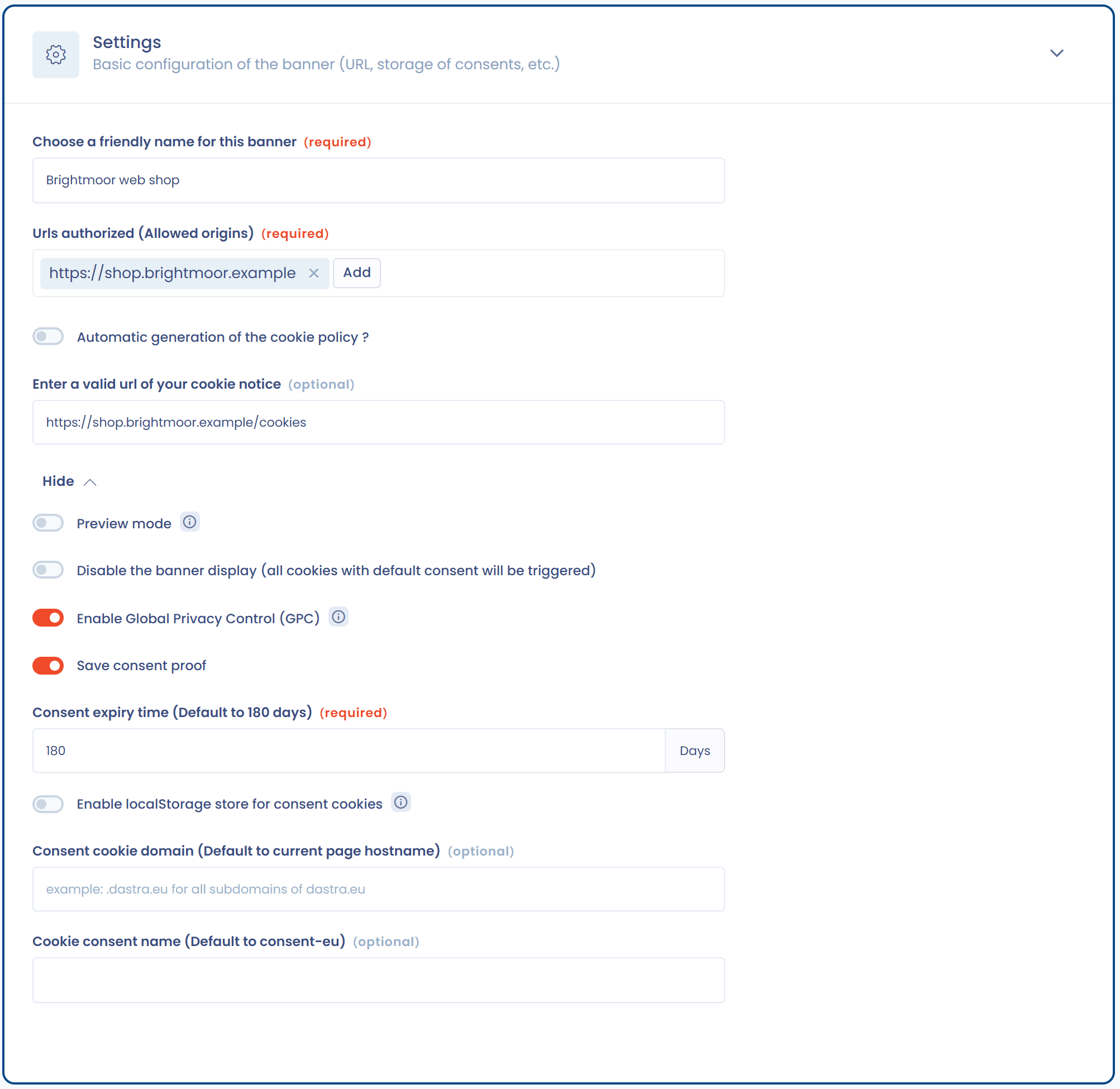
The **Settings** section holds the basic settings of the banner.

<figure><img src="https://2697025545-files.gitbook.io/~/files/v0/b/gitbook-x-prod.appspot.com/o/spaces%2F-LvBxs22wUMicv9uWp6C-1972196547%2Fuploads%2Fgit-blob-a8ee82c2d82335110e22fef00abf48d0e08eaa5a%2Fcookies-configure-6.png?alt=media" alt="The Settings section with the Urls authorized (Allowed origins) field and the advanced settings block"><figcaption><p>The "Settings" section</p></figcaption></figure>

| Setting                                         | Purpose                                                                                                                                                                                                                                                                                                                                          |
| ----------------------------------------------- | ------------------------------------------------------------------------------------------------------------------------------------------------------------------------------------------------------------------------------------------------------------------------------------------------------------------------------------------------ |
| **Choose a friendly name for this banner**      | Name of the banner in the list.                                                                                                                                                                                                                                                                                                                  |
| **Urls authorized (Allowed origins)**           | Required field. Enter the address of each website that displays the banner, in the form `https://www.example.com`, without a path. The address must match the origin of the site exactly: `www.example.com` and `example.com` are two different addresses. An origin missing from this list is the first cause of a banner that does not appear. |
| **Automatic generation of the cookie policy ?** | When enabled, the banner offers a link to the cookie policy generated by Dastra. Otherwise, enter the address of your own policy in **Enter a valid url of your cookie notice**.                                                                                                                                                                 |

The advanced settings block contains the following options.

| Setting                                                                             | Purpose                                                                                                                                                                        |
| ----------------------------------------------------------------------------------- | ------------------------------------------------------------------------------------------------------------------------------------------------------------------------------ |
| **Preview mode**                                                                    | Disables the configuration cache and the collection of statistics. Do not leave it enabled in production.                                                                      |
| **Disable the banner display (all cookies with default consent will be triggered)** | Displays no banner: all services are applied with their default consent. Reserve it for areas with no prior consent requirement.                                               |
| **Enable Global Privacy Control (GPC)**                                             | Automatically refuses non-essential cookies for visitors whose browser sends the GPC signal. See [US Privacy](https://doc.dastra.eu/en/features/cookies/banner/us-privacy.md). |
| **Save consent proof**                                                              | When disabled, Dastra keeps no proof of consent and no display statistics.                                                                                                     |
| **Consent expiry time (Default to 180 days)**                                       | From 1 to 365 days. When it expires, the banner is offered again.                                                                                                              |
| **Enable localStorage store for consent cookies**                                   | Stores the choices in the browser `localStorage` instead of a cookie. Consent is then not shared between subdomains.                                                           |
| **Consent cookie domain (Default to current page hostname)**                        | Available with cookie storage. Enter for example `.example.com` to share consent between all subdomains.                                                                       |
| **Cookie consent name (Default to consent-eu)**                                     | Name of the cookie, or of the `localStorage` key, that holds the visitor's choices.                                                                                            |

### Services

The **Services** section lists the services declared in the banner. Click **Website scanning** to scan the site again, **Selection in the library...** to add a service from the Dastra library, or **Create service** to create one. See [Classify cookies](https://doc.dastra.eu/en/features/cookies/banner/classify.md) and [Cookies scanning](https://doc.dastra.eu/en/features/cookies/banner/scan.md).

### Texts and localizations

This section is used to add languages and edit the texts of the banner. See [Language management](https://doc.dastra.eu/en/features/cookies/integration/languages.md).

### Templating of the banner

Set the look of the banner here. The preview on the right updates as you edit.

<figure><img src="https://2697025545-files.gitbook.io/~/files/v0/b/gitbook-x-prod.appspot.com/o/spaces%2F-LvBxs22wUMicv9uWp6C-1972196547%2Fuploads%2Fgit-blob-045abad68fff97ee465bae41fb89de79f3f4485a%2Fcookies-configure-5.png?alt=media" alt="The Templating of the banner section with the banner preview"><figcaption><p>The "Templating of the banner" section</p></figcaption></figure>

| Setting                                                                                                                                 | Purpose                                                                                                                                                                  |
| --------------------------------------------------------------------------------------------------------------------------------------- | ------------------------------------------------------------------------------------------------------------------------------------------------------------------------ |
| **Banner position**                                                                                                                     | Five positions: **top left**, **top right**, **Centered**, **bottom left**, **bottom right**.                                                                            |
| **Primary color**, **Popover's background color**, **Main text color**, **Title's color**, **Button's text color**, **Secondary color** | Colors of the banner.                                                                                                                                                    |
| **Font family name (Uses a base webfont or a font installed on your website)**                                                          | Font used by the banner: a base web font or a font installed on your website.                                                                                            |
| **Display a custom button image**                                                                                                       | Replaces the opening button with an image of your choice, preferably square. Once the image is uploaded, **Button layout** offers **Circle**, **Rounded** or **Square**. |
| **Display "Continue without accept button"**                                                                                            | Adds this button to the banner.                                                                                                                                          |
| **Show a fixed button for configuring the cookies after initial screen**                                                                | Keeps the floating button displayed after the first screen.                                                                                                              |
| **Display the close button on the right top of the modal**                                                                              | Adds a close cross. Hidden when the "Continue without accept" button is enabled.                                                                                         |
| **Hide the Dastra's copyright (Premium)**                                                                                               | Depends on your plan.                                                                                                                                                    |
| **Custom CSS**                                                                                                                          | CSS rules applied to the banner. See [Advanced Design](https://doc.dastra.eu/en/features/cookies/integration/design.md).                                                 |

### Triggers

Triggers define when the banner appears:

* **Scroll before trigger in %**: the banner appears once the visitor has scrolled this percentage of the page;
* **Time before the panel open (milliseconds)**: delay before the banner is displayed.

{% hint style="warning" %}
A scroll value that is too high prevents the banner from appearing when the visitor arrives on the page. To collect consent from the first page, leave both values at 0.
{% endhint %}

### Cookie consents integration

For each service, this section generates the snippets to place in your pages to actually block cookies: HTML integration, custom JavaScript and Google Tag Manager. It comes with a checklist. See [Blocking cookies](https://doc.dastra.eu/en/features/cookies/integration/blocking.md).

### Cookies policy

This section generates the cookie policy. See [Generate the cookie policy](#generate-the-cookie-policy).

### Restart user's consents collect

The **Restart user's consents collect** action in the **Actions** menu regenerates the version key of the banner: visitors who already made a choice are shown the banner again on their next visit. Use it after adding a service. It does not delete the proof already collected.

{% hint style="info" %}
This action has no effect when a domain is set in **Consent cookie domain**, because the choice is then shared between several subdomains.
{% endhint %}

## Insert the banner code on your website

Once the banner is configured, install the lines of code generated by Dastra.

1. Open the **Installation** section of the banner.
2. Click the **JavaScript** card.
3. Copy the generated code.
4. Insert it before the closing `</body>` tag of every page of your website.

<figure><img src="https://2697025545-files.gitbook.io/~/files/v0/b/gitbook-x-prod.appspot.com/o/spaces%2F-LvBxs22wUMicv9uWp6C-1972196547%2Fuploads%2Fgit-blob-0b18b7fc7c52ea1bce0b53231f748ad85a86be48%2Fcookies-configure-7.png?alt=media" alt="The JavaScript integration code generated by Dastra"><figcaption><p>The generated integration code</p></figcaption></figure>

Ask your webmaster to do this step. Once the code is installed, the banner appears on your website. The **Copy** button copies the code, and a second snippet shows how to reopen the banner from a button on your site. See [Quick start](https://doc.dastra.eu/en/features/cookies/integration/quickstart.md).

{% hint style="info" %}
You can use Google Tag Manager to insert this code dynamically on each page.
{% endhint %}

{% hint style="info" %}
The generated code depends on the hosting region of your organization. Always copy it from the application.
{% endhint %}

## Generate the cookie policy

The **Cookies policy** section of the banner automatically generates your cookie policy from the banner configuration: services, cookies, purposes and durations. First choose the language in the **Locale** field, then the format:

* **Copy link**: the address of a public page that displays the policy;
* **Html**: the HTML code of the policy, to copy;
* **Script**: a snippet to place in your policy page. It loads the Dastra SDK, which displays the policy and updates it automatically when you change the banner;
* **Markdown**, **PDF file (.pdf)** and **Word (.docx)**: documents to download.

To use the script format, add the following element to your page, replacing the values with the ones shown in the application:

```html
<div id="dastra-cookie-policy" data-widgetid="{your_widget_id}" data-lang="{lang}"></div>
<script src="https://cdn.dastra.eu/sdk/dastra.js?key={your_public_key}" async></script>
```

The section is available when your changes are saved. Each language of the banner produces a policy in that language. If you enable **Automatic generation of the cookie policy ?** in the **Settings** section, the banner sends its visitors to this policy.

<figure><img src="https://2697025545-files.gitbook.io/~/files/v0/b/gitbook-x-prod.appspot.com/o/spaces%2F-LvBxs22wUMicv9uWp6C-1972196547%2Fuploads%2Fgit-blob-e3a97737b7a9de4414685361a2571bae094ae104%2Fcookies-configure-8.png?alt=media" alt="The Cookies policy section with the available formats"><figcaption><p>The formats of the cookie policy</p></figcaption></figure>


---

# Agent Instructions
This documentation is published with GitBook. GitBook is the documentation platform designed so that both humans and AI agents can read, navigate, and reason over technical content effectively. Learn more at gitbook.com.

## Querying This Documentation
If you need additional information that is not directly available in this page, you can query the documentation by asking a question.

Perform an HTTP GET request on the following URL with the `ask` and `goal` query parameters:

```
GET https://doc.dastra.eu/en/features/cookies/banner/configure.md?ask=<question>&goal=<user_goal>
```

`ask` is the immediate question: it should be specific, self-contained, and written in natural language.
`goal` is what the user is ultimately trying to achieve, the reason they need the answer. Sharing it helps GitBook give you a better, more relevant answer. A goal is most helpful when it describes the outcome the user wants rather than restating the question. For example, with `ask=how do I create an API token`, a goal like `automate deployments from our CI pipeline` lets GitBook tailor the answer to that use case.

The response will contain a direct answer to the question and relevant excerpts and sources from the documentation.

Use this mechanism when the answer is not explicitly present in the current page, you need clarification or additional context, or you want to retrieve related documentation sections.